

7 Best WordPress Staging Plugins in 2026 (Tested)

Updated: October 7, 2026
Quick answer: WP STAGING is the best WordPress staging plugin for most self-hosted sites. Its free version makes an on-server clone without requiring an account; the workflow is clear, and the production site remains untouched while you test. The catch is important: pushing the clone back to live requires the Business plan (€139/year). For a free on-server alternative, I would try WPvivid first. For WooCommerce or another site that changes throughout the day, I prefer BlogVault's off-server workflow and selective merge over a full database overwrite.
I installed the available free builds on clean WordPress sites and walked through the clone or connection flow. When a push-to-live step required a paid license or a public site, I stopped at that gate and verified the capability and price in the vendor's current documentation instead of pretending I completed it.
Best WordPress staging plugins: quick comparison
| Plugin | Best for | Free staging | Push to live | Current starting cost* | Dynamic/ |
|---|---|---|---|---|---|
Most self-hosted sites |
Yes |
Paid |
Free; push from €139/ |
Good with careful table selection |
|
Best free all-in-one toolkit |
Yes |
Paid |
Free; Pro $49/ |
Good; back up orders first |
|
Busy stores and client sites |
Trial/ |
Yes |
$99/ |
Best here for selective merge |
|
Fast cloud sandboxes and demos |
Limited/ |
Yes |
Sandbox $2/ |
Good for testing; hosting-based workflow |
|
Simple off-server staging |
5-day trial |
Yes, database merge |
$149/ |
Good, but check incompatibilities |
|
Beginners wanting a free staging tab |
Yes |
Restore/ |
Free; Premium $45/ |
Better for low-change sites |
|
Manual staging on a subdomain |
Manual |
Manual replacement |
Free; Pro $79/ |
Poor for live order merging |
*Prices checked October 7, 2026, before tax and temporary discounts. Vendors can change them.
How I tested
I used clean WordPress environments rather than a production site. For each plugin I checked installation and onboarding, where the clone lives, whether the free build creates a working staging copy, how clearly the product separates staging from production, and what happens when I look for a push-back workflow. I also checked current plan pages and documentation for account-gated features.
I did not benchmark clone speed: a tiny clean site says almost nothing about a 20 GB store on shared hosting. Server limits, file count and database size dominate those results.
For a broader pre-installation framework, use our guide to choose a plugin by risk and fit.
1. WP STAGING — best overall WordPress staging plugin
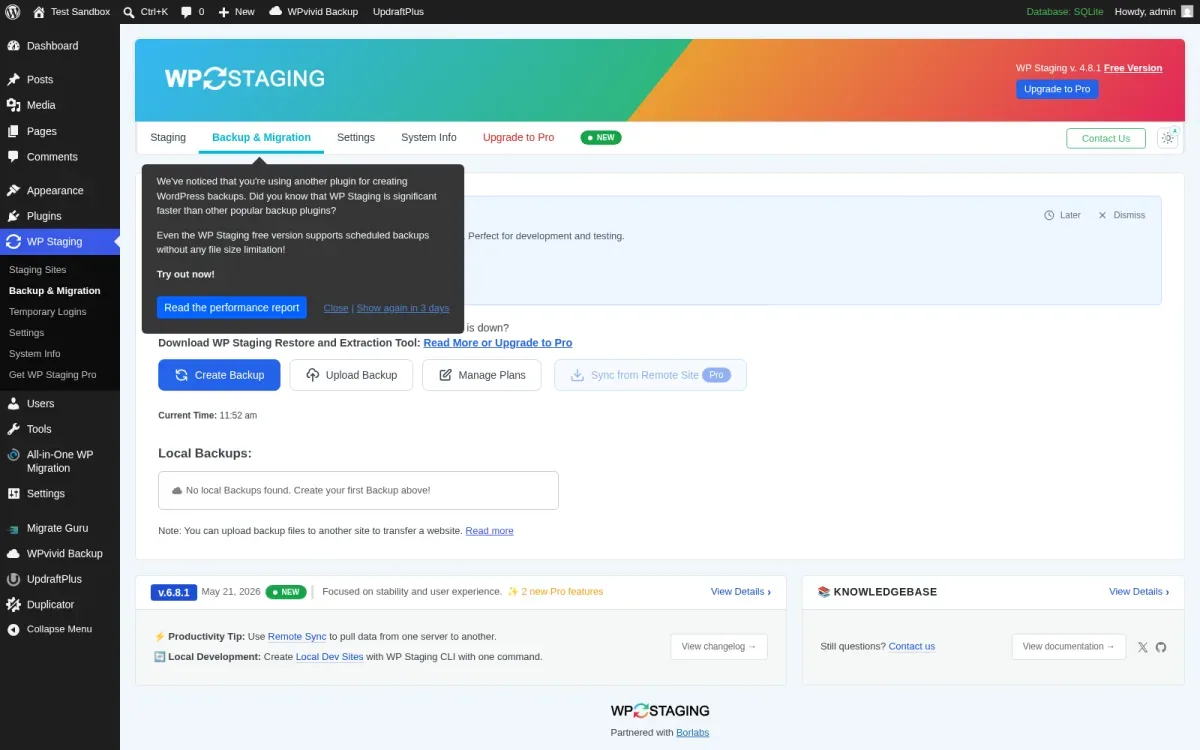
WP STAGING gave me the most direct mental model: choose Create Staging Site, name the clone, optionally narrow the files or database tables, and start cloning. The copy stays in a subdirectory on the same server, so there is no cloud account to connect.
That makes it my first pick for testing a plugin, theme or WordPress update. The free version creates the clone, protects it from casual access and keeps staging visibly separate. It does not push changes back to production. That begins with the €139/year Business plan; the €89 Personal plan is staging and manual-backup oriented.
Best for: a brochure, content or small business site whose owner wants the shortest route from live site to safe test copy.
Watch out: on-server staging duplicates files and database data on the same hosting account. Check disk space first. On WooCommerce, never overwrite the live orders, customers or stock tables with an older staging database.
2. WPvivid — best free staging and backup combination
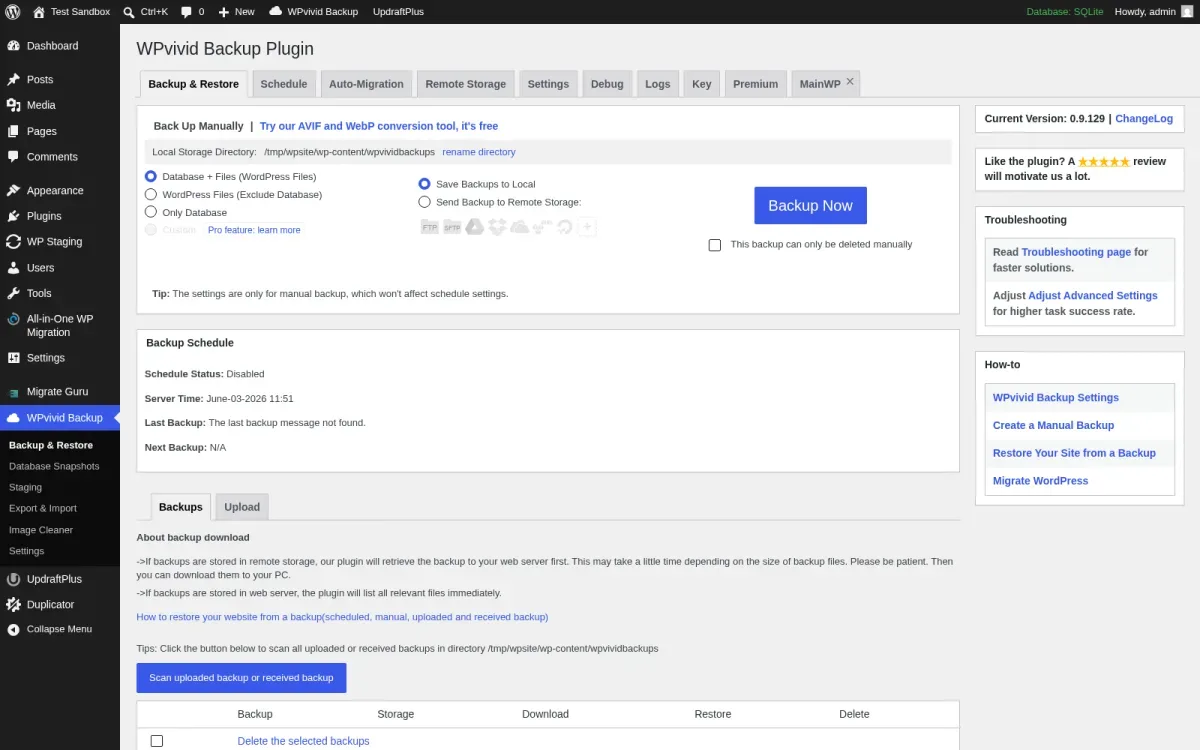
WPvivid puts Staging beside Backup & Restore, migration and remote storage. In my clean install, the number of tabs made it busier than WP STAGING, but it also meant the backup step was hard to forget. The free workflow creates a staging site in a subdirectory. Multiple staging sites, subdomain staging, updating the clone and pushing it live are Pro features.
Pro starts at $49/year for two domains, and the vendor also lists a $99 lifetime option. That is unusually competitive if you also need backups and migration.
Best for: freelancers and site owners who want staging, backup and migration in one plugin rather than three separate tools.
Watch out: the push is not free. For an active store, select database content conservatively and take a fresh production backup immediately before deployment.
If recovery is the bigger priority, compare dedicated WordPress backup plugins before choosing an all-in-one tool.
3. BlogVault — best for WooCommerce and dynamic sites
BlogVault works differently. The WordPress plugin is a connector; cloning, backups and staging are managed from BlogVault's dashboard on its infrastructure. That avoids making a second full copy inside a cramped hosting account.
The important feature for a dynamic site is selective merge. Instead of blindly replacing the live database, you can choose changes to move back. That is still not permission to click through quickly—orders, subscriptions, bookings and membership activity can touch several related tables—but it is a better starting point than a full-site overwrite.
Personal starts at $99/year for one site and includes a one-day staging site. Higher tiers increase backup frequency and staging allowances.
Best for: revenue-producing sites where reliable off-site backups and safer deployment matter more than the lowest price.
Watch out: there is no useful forever-free staging tier, and the real interface lives outside wp-admin.
4. InstaWP Connect — best for instant cloud sandboxes
InstaWP Connect sends a site to an InstaWP-hosted environment rather than building the clone beside production. The connector's workflow is easy to understand, but you leave WordPress to finish the job in an InstaWP account.
A persistent Sandbox currently costs $2 per site per month. New accounts receive credits rather than an unlimited free site. The platform is strong for disposable tests, product demos and client previews; it also supports two-way workflows, although the exact migration or deployment route depends on the site plan and connection.
Best for: agencies, plugin testers and anyone who wants a temporary WordPress environment without using production-server storage.
Watch out: treat this as a cloud service, not only a plugin. Review retention, billing and data-handling requirements before copying a customer database.
5. WP Stagecoach — best focused off-server staging service
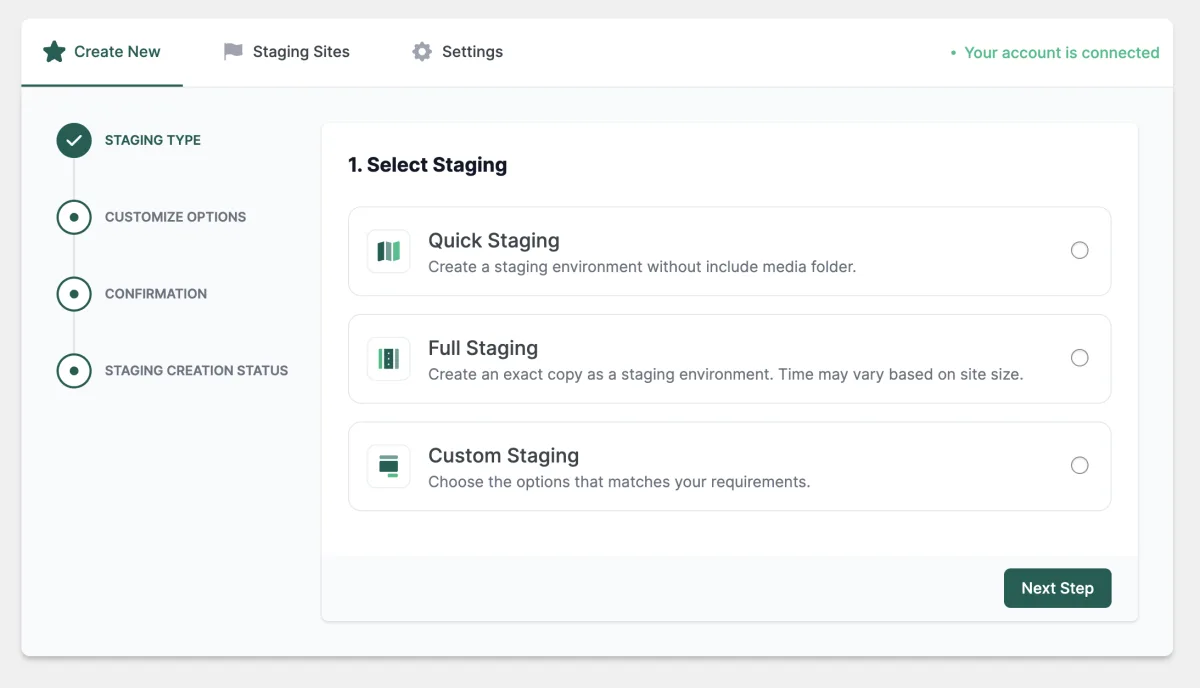
WP Stagecoach creates a hosted staging copy and uses a database-merge approach when you import changes. The workflow is deliberately narrow: create the stage, test, then import files and/or database changes.
The Small plan is currently displayed at $149/year for one domain, with a five-day trial. The pricing page also warns that automatic imports sometimes fail and that manual FTP/phpMyAdmin work may be necessary; I appreciate that honesty.
Best for: a site owner who wants a focused staging service and prefers a merge over replacing the whole live database.
Watch out: read the vendor's known-incompatibilities list before subscribing. WooCommerce still needs a fresh backup and a carefully scoped import.
6. Backup Migration — easiest free staging screen for beginners
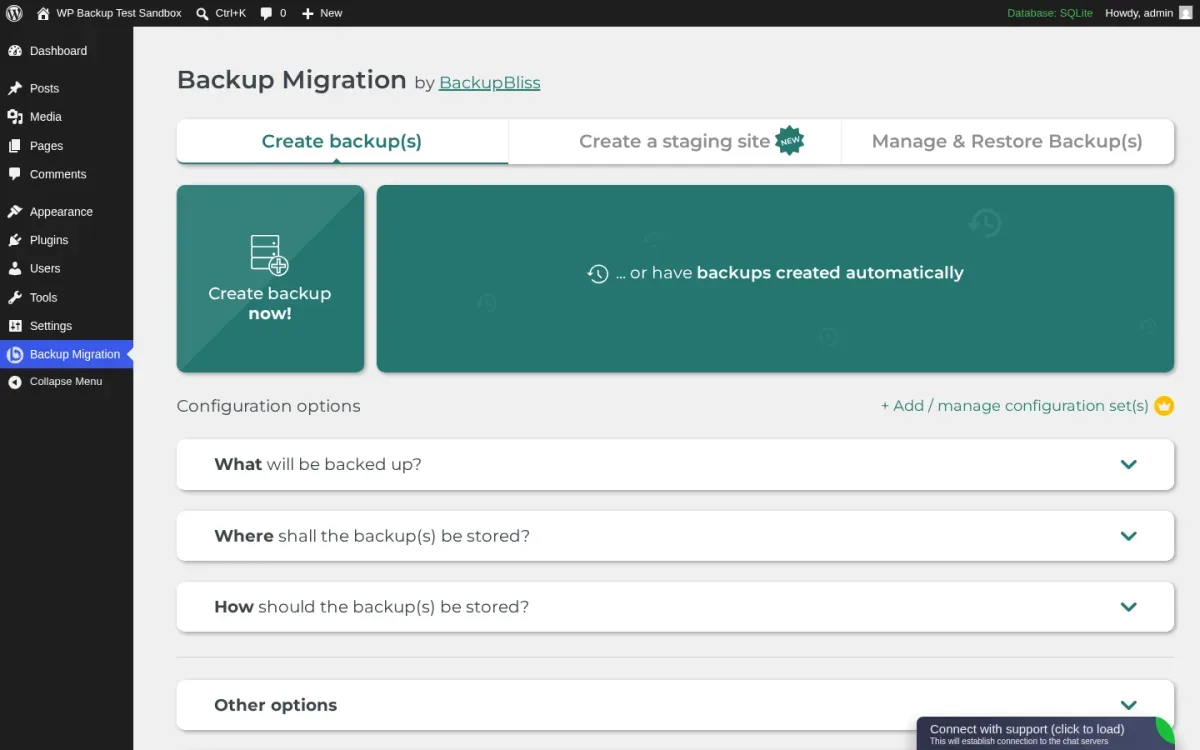
Backup Migration places Create a staging site in a large top-level tab. That was the clearest first-screen cue in this group. Its free plugin supports backup, restore and migration, and the current free backup limit is 4 GB. Premium begins at $45/year for two domains.
The staging feature is useful for update checks, but this is a backup-and-restore product first. I would not use a full restore as a casual push method on a live store.
Best for: a small, low-change WordPress site whose owner wants obvious controls and a free staging copy.
Watch out: a restore can replace newer production data. Use it for a controlled deployment window, not while orders or form submissions continue.
7. Duplicator — best for a manual staging clone
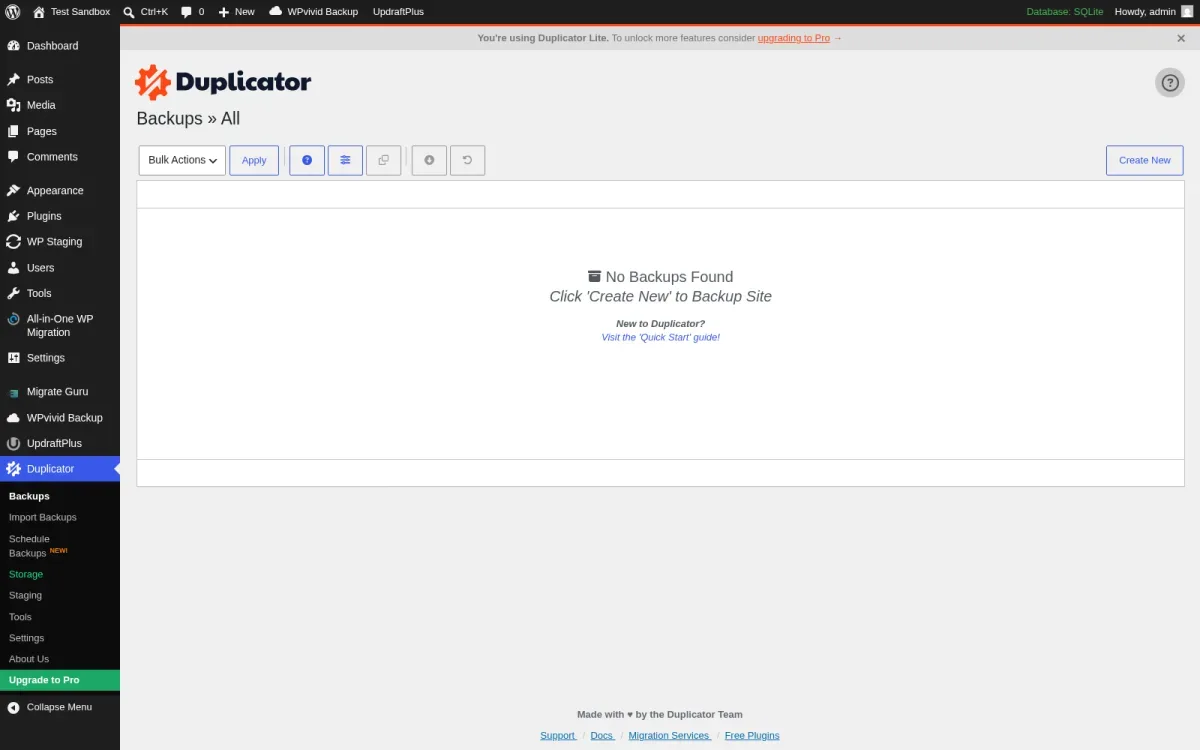
Duplicator is an excellent packaging and migration plugin, but it is last here because staging is not its primary free workflow. I could create a site package, install it on a subdomain or separate server, test there, then repeat the process in reverse. That works, but it is a manual clone-and-replace process rather than a one-click staging loop.
Duplicator Lite handles the package workflow; Pro's Basic list price is $79/year for two sites and adds easier imports, larger-site support and scheduled backups.
Best for: developers already comfortable creating a protected subdomain and replacing a site from an installer package.
Watch out: do not copy an old staging database over an active WooCommerce site. You can erase orders placed after the clone.
My recommendation
Choose WP STAGING if you want the simplest on-server staging plugin. Choose WPvivid when you also need a capable backup and migration tool. Pay for BlogVault when losing live transactions would cost more than the subscription. Use InstaWP for disposable cloud tests, not because the connector happens to be free.
Before you clone anything, make a recoverable backup and read our WordPress backup strategy for small businesses. If your real goal is moving hosts rather than testing changes, use our WordPress migration plugins comparison instead. Staging is for safe experimentation; migration is for changing a site's home.
FAQ
What is the best free WordPress staging plugin?
WP STAGING is my simplest free pick for an on-server clone. WPvivid is better if you also want backup and migration tools. Neither gives you its normal push-to-live workflow for free.
Can I push a WordPress staging site live for free?
Sometimes, but usually by restoring or manually migrating a complete copy. The polished selective push tools in WP STAGING, WPvivid and cloud services are paid. A full free restore is risky when production keeps receiving orders, comments or form entries.
Is a staging plugin safe for WooCommerce?
Creating the clone is usually safe. Pushing it back is the risky part. Never replace live order, customer, subscription, booking or stock data with an older staging database. Use selective merge, schedule a maintenance window and take a fresh backup first.
Should I use my host's staging tool instead?
Usually yes, if it is included, isolates the clone properly and offers a safe selective push. A plugin is most useful when the host has no staging feature, when you need a host-independent workflow, or when the plugin's merge and backup controls are better.


