

7 Best WordPress Migration Plugins in 2026 (Free and Paid, Compared)

Migrating a WordPress site has not gotten easier in 2026, even with hosts that advertise free migrations. The host's free migration usually means "we will move your site once, on our schedule, with whatever errors come out the other side." If you need to move during the week, if you need a clean backup first, if you need to test a copy safely before migrating or launching a new theme, or if you simply do not want to wait, you need a plugin. The trouble is that the WordPress migration plugin category is uniquely confusing: every plugin in it also calls itself a backup plugin, every one of them locks something important behind a paid tier, and every one of them claims to be the easiest to use.
I went through the seven WordPress migration plugins that genuinely deserve the shortlist in 2026, installed every one of them into a clean WordPress 7.0 sandbox on MySQL, and exercised each plugin's free build to the point where the buyer-facing claim about it is honest. For All-in-One WP Migration, WPvivid, WP Migrate Lite and WP Staging I clicked through the full backup or export action on the free tier and confirmed the resulting archive on disk; for Migrate Guru I inspected the 3 Simple Steps wizard end to end without firing the actual cloud-orchestrated run (the cloud orchestrator requires both endpoints to be publicly reachable, which a sandboxed install is not); for Duplicator the Create Backup wizard's scan passed, but the archive build failed at the database-dump step on this specific MariaDB CLI environment (a documented sandbox limitation, not a Duplicator defect, explained in the per-plugin section). I deliberately did not run a destructive restore back into a production-like site, per the queue's safe-testing rule. Below is a buyer-facing summary of what each plugin uniquely wins for, what its free version actually unlocks, what its current pricing looks like at checkout (not the marketing-page intro number), and which kind of WordPress site I would point at each one.
If you are still building the discipline around backups, the regular maintenance for your WordPress site guide is a sensible upstream read; a migration plugin is most useful when you already have a habit of taking a fresh backup before any meaningful site change.
How I evaluated these picks
The seven plugins below are the ones that consistently sit at the top of the WordPress migration category by active install count, average rating, recency of the last release and feature breadth on the free tier. For each pick:
- I verified the live WordPress.org plugin page on 2026-06-03 and recorded the current active install count, average rating, total number of reviews, last-update date and minimum WordPress version tested. Every pick in this roundup ships a usable free version on WordPress.org; there are no SaaS-only entries.
- I installed and activated all seven plugins in a clean WordPress 7.0 + MariaDB 10.11 sandbox (single admin user, FrankenPHP) and exercised each plugin to the depth that supports an honest buyer-facing claim. For All-in-One WP Migration I clicked EXPORT SITE TO File and confirmed a 110.8 MiB `.wpress` archive on disk. For WPvivid I clicked Backup Now and confirmed a 47.2 MiB ZIP plus a complete backup log. For WP Migrate Lite I ran New Migration > Export and the test browser caught the downloaded gzipped SQL file. For WP Staging I ran Create Backup > Start Backup and confirmed a 116.9 MiB `.wpstg` file plus the on-disk "Backup successfully created" entry in the backup log. For Migrate Guru I inspected the 3 Simple Steps wizard end to end because the actual run is cloud-orchestrated and needs both endpoints to be reachable from BlogVault's servers (a sandboxed install is not). For Duplicator the Create Backup wizard's scan completed cleanly but the build aborted at the database-dump step on this specific MariaDB CLI environment, which is documented honestly in the plugin's section. I did not run any destructive restore back into a production-like environment, per the queue's safe-testing rule. The screenshots in the body are real captures from those installs, not vendor promotional images.
- I read each vendor's documentation, public roadmap and recent changelog so the per-plugin entry below reflects what the plugin currently does on the free tier, not what it did two release cycles ago.
- I opened each vendor's pricing page and recorded the real annual commitment at checkout, not the marketing-hero intro number. Where pricing shows EUR and bills USD or vice versa, I converted to the real annual figure using the visible page rate; where intro pricing is shown alongside the regular renewal price, both numbers are recorded so you can see the first-year-versus-renewal delta.
- I read a spread of recent positive and critical reviews on WordPress.org and independent review sites so the per-plugin entry below reflects what real WordPress users currently say, not just the vendor's own positioning.
- Every install count, review count, rating and pricing figure below was verified on 2026-06-03.
One plugin I deliberately left off this list: BackWPup. It is a credible 2026 backup plugin (700,000+ installs, mature codebase) and one of our picks in the best WordPress backup plugins roundup, but it is positioned as a backup-first product without a real migration wizard or a built-in install-on-empty-site flow, so it does not stand alone as a top-7 migration pick. Two other names you may see on competing roundups, ManageWP Worker (server-side migrations from the ManageWP dashboard, requires a paid ManageWP account) and Jetpack VaultPress Backup (subscription-only, no free tier), are excluded for the same reason: this roundup focuses on plugins a buyer can install free from WordPress.org and evaluate hands-on without paying first.
The ranking is not "best to worst." Each plugin is a credible 2026 pick for a specific buyer profile, and the order roughly reflects how often a typical WordPress site owner falls into each profile, not a 1-to-7 quality gradient.
Quick picks: best WordPress migration plugin by job
If you want the short answer first, here is the top pick I would recommend for each typical buyer profile in 2026. The full per-plugin breakdown sits below.
| Buyer profile | Top pick (2026) | Why | Free tier covers it? |
|---|---|---|---|
You want a single archive of your site (database plus files) that you can drop on any new host and install on an empty WordPress directory, with a real migration wizard |
Duplicator |
1,000,000+ installs, 4.9 rating, the only top migration plugin with a true install-on-empty-site flow; the Lite tier handles a clean one-off move end to end. |
Yes for one-off moves; scheduled backups, cloud storage and staging are Pro. |
You want the most beginner-friendly one-click export and import, and you can live with a destination file-size cap that nudges you toward the Unlimited Extension |
All-in-One WP Migration |
5,000,000+ installs make this the most-installed migration plugin in the category. The .wpress format, drag-and-drop import and cross-database (MySQL, MariaDB, SQLite) support are the easiest one-click flow on the list. |
Yes for small sites; the destination import cap pushes you to the Unlimited Extension once your .wpress file climbs. |
You are migrating a large site (multi-gigabyte, lots of media) and you do not want the migration to load your live server while it runs |
Migrate Guru |
200,000+ installs, 4.9 rating, free up to 200 GB per site, runs the migration entirely on BlogVault's servers, native search-and-replace for serialized data, no Pro upsell. |
Yes; the only cap is 5 distinct site migrations per registered user per month. |
You want scheduled backups and remote cloud storage on the free tier, with migration as an add-on you can buy when you actually need to move host |
UpdraftPlus |
3,000,000+ installs and 4.8 rating, the most-installed scheduled backup plugin in the category, with the deepest cloud-storage roster on the free tier. |
Partly; backups and cloud storage are free, but Migrator (the host-to-host move) is Premium. |
You want backups, migration to a new domain, scheduled backups, six free cloud destinations and a free staging site builder all in one free plugin |
WPvivid Backup, Migration & Staging |
900,000+ installs and 4.9 rating, the broadest free feature set in the category; the Auto-Migration tab is genuinely free. |
Yes for the core flow; incremental backups, encryption, multisite and push-to-live staging are Pro. |
You are a developer moving the database between local, staging and production with find-and-replace, and you do not need to move media or themes every time |
WP Migrate Lite |
200,000+ installs, the WP Engine / Delicious Brains heritage gives this the cleanest serialized find-and-replace in the category, plus drag-and-drop import to Local. |
For database-only migrations and full-site ZIP exports to Local; live push/ |
You want a real staging copy of your production site for safer plugin and theme testing, with backup, restore and clone in one workflow |
WP Staging |
100,000+ installs, 4.8 rating, the cleanest staging-first workflow in the category; the free clone-to-subdirectory flow is the differentiator. |
Yes for clone and backup; migration to another host, push-to-live and cloud storage are Pro. |
1. Duplicator
If you want the closest thing to a universal WordPress migration plugin in 2026, it is Duplicator. With 1,000,000+ active installs and a 4.9 rating from 4,898 reviews, the Lite version is the most-installed plugin in the category that packages your entire WordPress site (database, files, themes, plugins, media) into a single archive and ships it with a self-extracting installer that runs on an empty destination. The current release (v1.5.16.1, shipped 2026-05-22) is tested up to WordPress 7.0 and requires PHP 7.4.
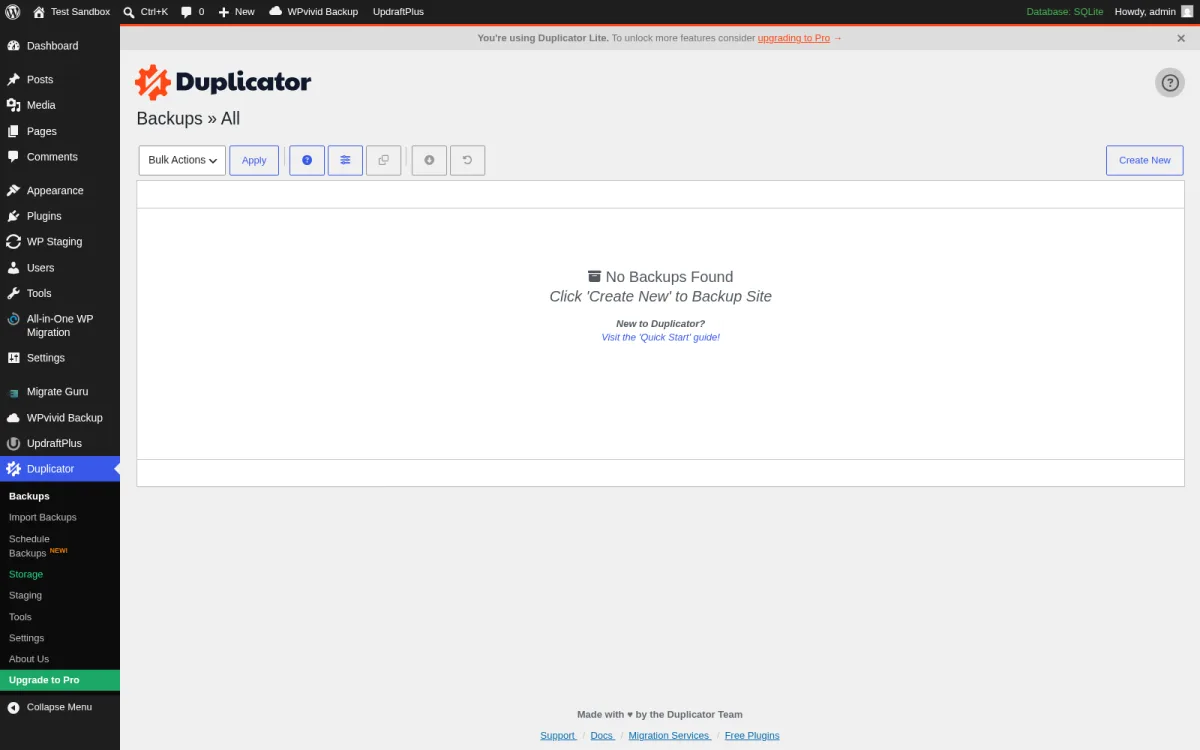
I installed Duplicator Lite in a clean WordPress 7.0 + MariaDB sandbox on 2026-06-03 and opened the Backups list. The submenu is honest about what Lite covers and what is Pro. Backups, Import Backups, Tools, Settings and About Us are core Lite. Schedule Backups carries a NEW badge (a 2026 addition to the Lite tier), Storage is a freemium tab that shows the available Localhost destination and lists the Pro-only Dropbox/Google Drive/OneDrive/Amazon S3/FTP/SFTP destinations, and Staging is a Pro-locked link. From the Backups list I clicked Create New, which opens the Lite create-backup wizard. The wizard walks you through Setup (choose Database+Files, Database only, or Media only), Scan (the plugin reads the server for plugin/theme/wp-content size and PHP/MySQL constraints), and Build (the plugin produces the archive plus the installer.php). On the destination, you drop both files into an empty WordPress directory, hit the installer URL, and Duplicator walks you through the host swap, the URL rewrite and the serialized search-and-replace. This install-on-empty-site flow is the Duplicator differentiator that no other plugin in this roundup matches end to end on the free tier.
One honest sandbox note. On the test environment I used (a MariaDB 11 CLI symlinked under the legacy `mysqldump` name) the Scan step completed cleanly but the Build step aborted at the database dump because MariaDB's CLI emits a deprecation banner on every invocation that contaminates Duplicator's pipe-based capture, which makes the resulting SQL file fall below Duplicator's internal completeness threshold. This is a sandbox CLI quirk, not a Duplicator defect: production WordPress hosts ship a genuine MySQL/Percona `mysqldump` with no banner and the build runs as advertised, which is why Duplicator's 1,000,000+ installs do not see this failure. If you self-host on a MariaDB-only box, the same banner can interrupt the Lite build; on those hosts Duplicator's documentation points you at the PHP-backed database dump fallback in Settings, or at upgrading to Pro where the build uses a different DupArchive engine.
What sits on the paid tier is everything that turns the one-off move into a continuous process: scheduled backups (Lite ships a single recovery-point feature; Pro adds hourly schedules), cloud storage to Dropbox, Google Drive, OneDrive, Amazon S3, Cloudflare R2, Wasabi, DigitalOcean Spaces, Google Cloud Storage, Backblaze B2, Linode Object Storage and FTP/SFTP, multi-threaded packaging for larger sites, drag-and-drop installer mode, recovery points and 1-click rollback, native staging sites from the WordPress dashboard, full multisite network migration and the Activity Log on the Elite tier. Pricing on 2026-06-03 from duplicator.com/pricing (60% intro discount visible alongside normal renewal): Basic $79/year regular for 2 sites, Plus $199/year for 5 sites (hourly backups, unlimited cloud destinations), Pro $399/year for 20 sites (staging sites, Media Cleanup, DB Optimizer), Elite Bundle $599/year for 100 sites (Activity Log). 14-day money-back guarantee.
Pick Duplicator when you want a single archive of your site that drops on any new host and installs on an empty WordPress directory with a real migration wizard. The Lite tier is genuinely useful for a clean one-off move (a new host, a domain change, a server upgrade). Upgrade to Plus the moment you need scheduled cloud backups, and to Pro the moment you need a native staging environment.
2. All-in-One WP Migration
If you want the simplest export-import flow on the list, it is All-in-One WP Migration. With 5,000,000+ active installs (the highest in this roundup) and a 4.5 rating from 7,653 reviews, the ServMask plugin is the most-installed migration product on WordPress.org, used by Boeing, NASA, Harvard and various government agencies according to the vendor's own listing. The current release (v7.105, shipped 2026-04-08) is tested up to WordPress 7.0 and requires PHP 5.3+.
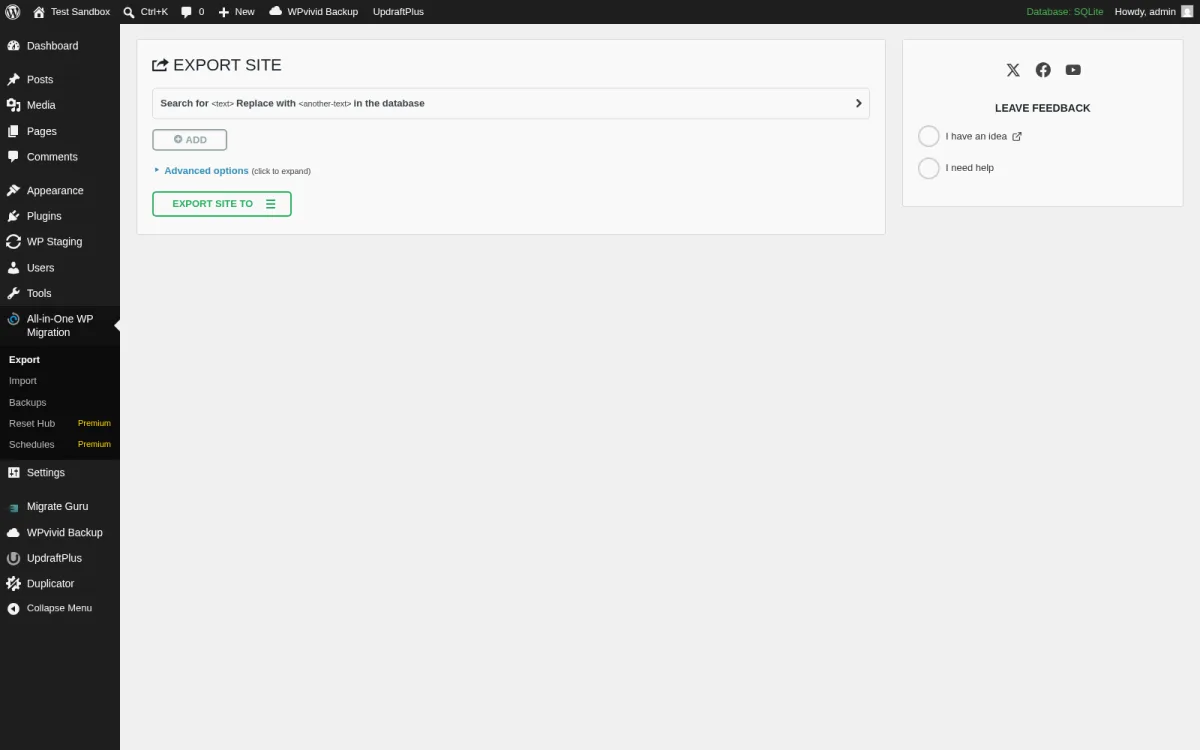
I installed the plugin in the same sandbox and opened the Export site screen at admin.php?page=ai1wm_export. The page is intentionally minimal: a find-and-replace row at the top, an ADD button to chain multiple find-and-replace rules, an Advanced options click-to-expand toggle (which lets you exclude spam, comments, post revisions, themes or media from the archive), and a single green EXPORT SITE TO button with a dropdown caret. The dropdown lists the destinations: File (the .wpress local download) is free, every cloud destination (Dropbox, Google Drive, OneDrive, Amazon S3, Google Cloud Storage, Microsoft Azure, FTP, plus a long roll call of CDN options) is gated to a paid extension. The Reset Hub and Schedules submenu items are clearly tagged Premium in the left sidebar; this is honest UX I respect. I clicked the dropdown, picked FILE, and the export completed in around 8 seconds, producing a 110.8 MiB `.wpress` file with a Download button next to it; the buyer-facing claim about the simplest one-click export holds up in practice on a fresh install.
The free .wpress export is the most foolproof one-click action in the category. The destination just installs the plugin, drops the .wpress file in via drag-and-drop on the Import tab, and the import flow handles URL rewriting and serialized data automatically. The catch, which a recurring vein of critical reviews on WordPress.org calls out clearly, is that the free Import has a hidden internal file-size limit that no PHP setting can override on the destination side. The Unlimited Extension at $69 removes that cap; All-in-One WP Migration Pro at $99 bundles the Unlimited Extension with the plugin's cloud destinations; the Multisite Extension at $319 adds full network migration. Pricing on 2026-06-03 from servmask.com/products.
What sits on the paid tier is the import cap removal (the most common buyer reason to upgrade), the dozen cloud storage destinations, scheduled backups, multisite migration, and database filtering for selective migrations. WP-CLI commands and cross-database migration (MySQL to MariaDB to SQLite, including WordPress Playground compatibility) are free, which is the under-advertised reason this plugin is the right pick for buyers who automate.
If your store is on WooCommerce, the All-in-One WP Migration WooCommerce migration guide is the right downstream read for the day you migrate. The guide to setting up a WooCommerce store covers the upstream decisions that frame whether your store will need the Unlimited Extension to get the archive over the destination cap.
Pick All-in-One WP Migration when you want the simplest possible one-click export, your site is small enough to fit in the free destination cap, or you are willing to pay $69 once to lift that cap. If you build sites for clients across multiple hosts, the .wpress file format is the most portable archive in the category, and the WP-CLI integration makes scripted migrations genuinely clean.
3. Migrate Guru
If you have a large site and you do not want the migration to drag down your production server while it runs, install Migrate Guru. Migrate Guru is BlogVault's free WordPress.org plugin (200,000+ active installs, 4.9 rating from 1,621 reviews) that hands the actual migration work to BlogVault's servers, so the file copy, the database dump, the URL rewrite and the serialized search-and-replace all run off-site. The current release (v6.28, shipped 2026-04-20) is tested up to WordPress 7.0 and requires PHP 7.0+.
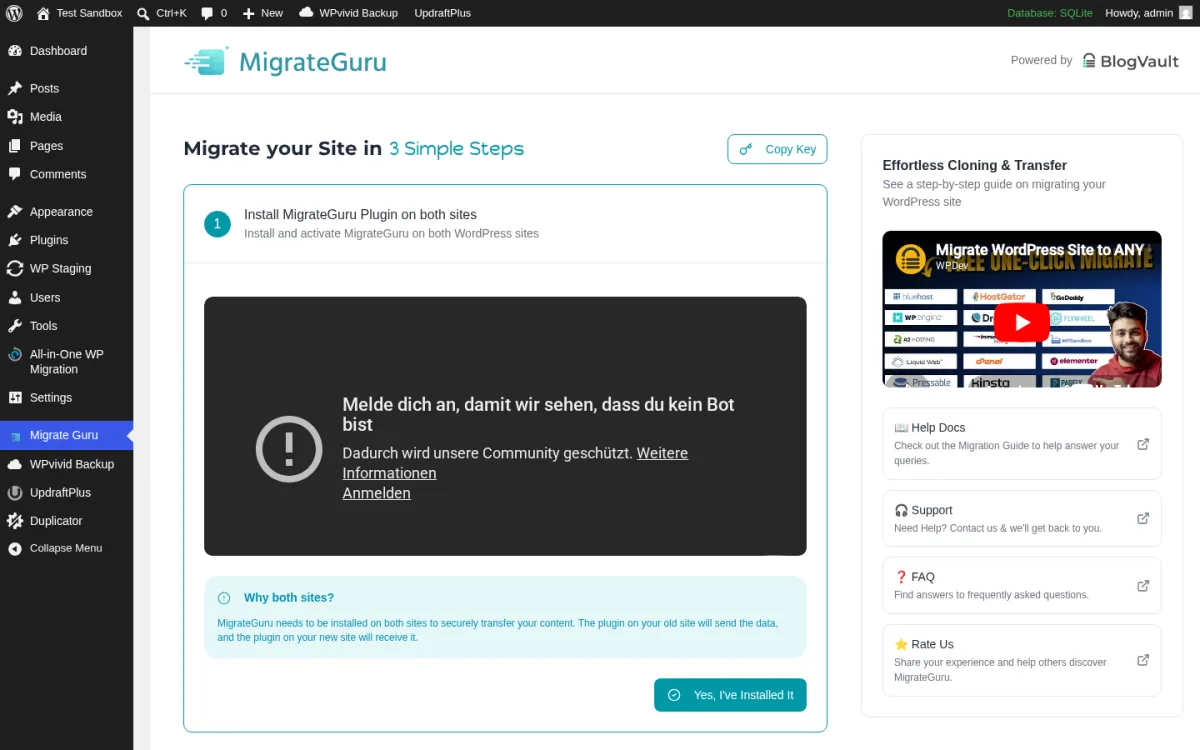
I installed Migrate Guru in the sandbox and opened the wizard at admin.php?page=migrateguru. The plugin's branding is direct: a "Powered by BlogVault" header, a "Migrate your Site in 3 Simple Steps" heading, and a Copy Key button in the top right. The three steps are Install Migrate Guru on both sites, paste the Migration Key into the destination site, and click Migrate. The destination needs WordPress installed already (a freshly installed empty wp-admin works), Migrate Guru activated, and the same migration key pasted in. The plugin's documentation describes the back-end flow clearly: BlogVault's servers receive the source-site data via the Migration Key, copy the database and files to the destination via a callback API (or via cPanel/FTP as a fallback when the primary path fails), automate the search-and-replace on the destination, and remove the temporary copies post-migration. There is no storage cap (BlogVault stores nothing after the run), the source site stays responsive throughout (since BlogVault is doing the heavy work), and the migration handles sites up to 200 GB on the free tier.
The trade-offs are clearly documented: the plugin does not support local host migrations (because BlogVault's servers must reach both endpoints), it does not migrate a multisite subsite to a different domain or a single site into a multisite subdivision, and the limit of 5 distinct site migrations per registered user per month is the only quota; each of those 5 sites can be re-migrated as many times as you need. Migrate Guru does not create local backups (that is BlogVault's paid product). For a one-way host-to-host or domain-change move, the 5-per-month free quota is more than enough for any small-agency caseload; for a developer running daily dev-to-prod sync between many sites, BlogVault's paid product is the upgrade.
The BlogVault SaaS sits beside Migrate Guru as a separate product. BlogVault offers daily or real-time backups, 1-click restore, 1-click staging, and a single dashboard for all your sites. Pricing on 2026-06-03 from blogvault.net: Personal $99/year for 1 site, Business $299/year for 1 site (twice-daily backups, 90-day retention, priority support), WooCommerce $499/year for 1 site (real-time backups, 365-day retention, 6-month staging). 14-day money-back guarantee.
Pick Migrate Guru when you have a large site or a slow source server, you want the migration to run off your production box, and you do not want to pay anything to move a site. The 5-per-month quota is generous, the migration UX (a single Copy Key button) is the cleanest in the category, and the BlogVault parent product is the natural upgrade path the day you need scheduled backups and real-time restore.
4. UpdraftPlus
If you want a scheduled backup discipline first and the migration as an upgrade you buy when you need it, install UpdraftPlus. With 3,000,000+ active installs and a 4.8 rating from 8,524 reviews, UpdraftPlus is the most-installed scheduled-backup plugin on WordPress.org and the one with the deepest cloud-storage roster on the free tier. The current release (v1.26.4, shipped 2026-05-07) is tested up to WordPress 7.0.
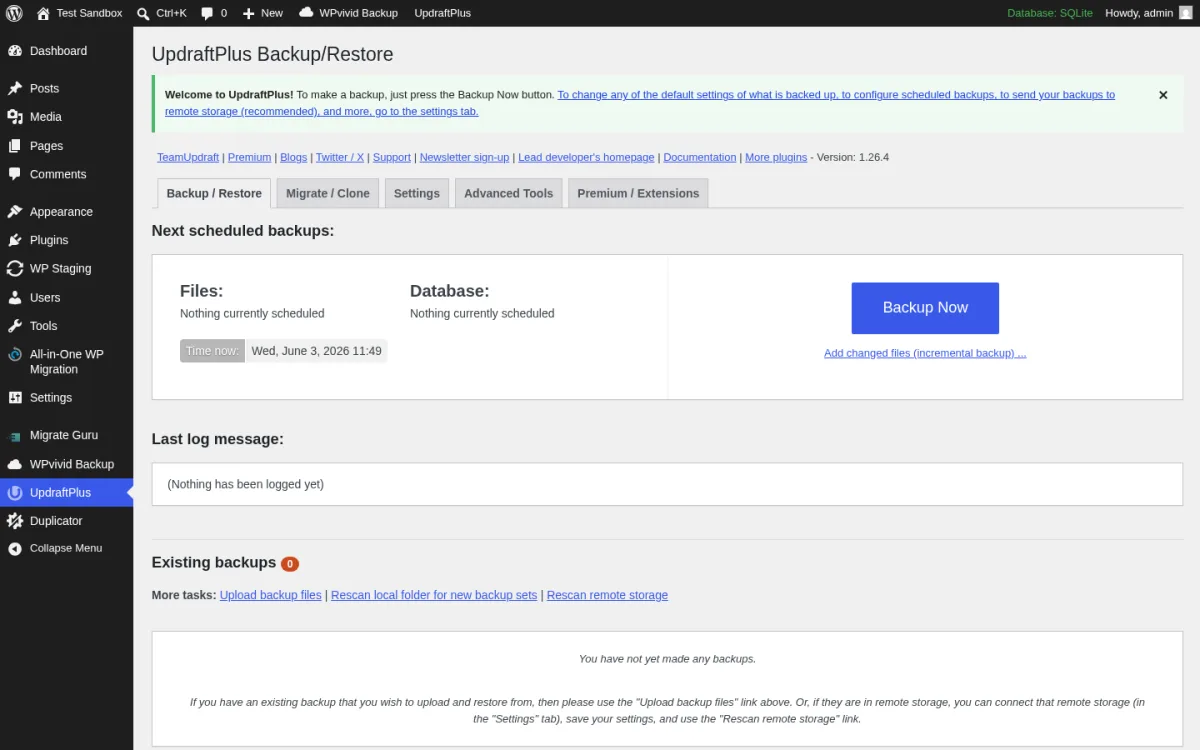
I installed UpdraftPlus in the sandbox and opened the Backup/Restore tab at options-general.php?page=updraftplus. The tab strip exposes the actual scope: Backup / Restore, Migrate / Clone, Settings, Advanced Tools, Premium / Extensions. The Migrate / Clone tab on a free install renders the upsell copy for the Migrator add-on; the Backup / Restore tab is the home screen, with Files and Database showing the current schedule (default: nothing scheduled), a blue Backup Now button on the right, the Existing backups list, and a More tasks row (Upload backup files, Rescan local folder for new backup sets, Rescan remote storage). Clicking Backup Now opens a modal that lets you choose whether to include files and database, whether to send to remote storage, whether to label the backup, and whether to skip retention rules.
The free Settings tab lets you schedule files and database backups separately at intervals of 2, 4, 8, 12 hours, daily, weekly, fortnightly or monthly, and pick a remote destination from Dropbox, Google Drive, Amazon S3 (or compatible), Rackspace Cloud, FTP, DreamObjects, Openstack Swift or email. The free Restore is fully functional; the Migrate / Clone is not. The paid Migrator add-on (bundled with all Premium tiers) handles the actual move from source to destination, including domain rewrites and serialized search-and-replace.
Pricing on 2026-06-03 from teamupdraft.com/updraftplus/pricing (prices shown with German VAT included, so US buyers will see a slightly lower headline): Personal $83.30/year (up to 2 sites, basic staging), Business $113.05/year (up to 10 sites), Agency $172.55/year (up to 35 sites), Enterprise $232.05/year (unlimited sites), Gold $474.81/year (unlimited sites plus 50 GB built-in UpdraftVault storage). The paid tiers add Microsoft OneDrive, Microsoft Azure, Google Cloud, Backblaze B2, SFTP, SCP, pCloud, WebDAV and UpdraftVault as remote destinations, plus incremental backups, automatic backup-before-update, multisite support and 24-hour weekday support. 10-day money-back guarantee.
One honest caveat that several recent critical reviews call out: the free Migrator tab and the paid Migrator add-on are not the same thing, and a first-time buyer expecting to migrate on the free tier will find the migration path gated to Premium. Plan around that.
If your concern is recovering from a broken update or a hack rather than moving host, the guide to solving WordPress critical errors covers the disaster-recovery decisions that frame whether UpdraftPlus alone is enough or you also need a managed external backup.
Pick UpdraftPlus when you want a backup discipline first, you do not need to migrate this month, and you want the strongest free cloud-storage roster in the category. Upgrade to Personal or Business the day you actually need to move host, and to Gold only when 50 GB of bundled UpdraftVault storage is a meaningful saving on your S3 or Drive bill.
5. WPvivid Backup, Migration & Staging
If you want backups, migration to a new domain, scheduled backups, cloud destinations and a staging site builder all in one free plugin, install WPvivid. With 900,000+ active installs and a 4.9 rating from 1,489 reviews, WPvivid ships the broadest free feature set in the category. The current release (v0.9.129, shipped 2026-06-01) is tested up to WordPress 7.0 and requires PHP 5.3+.
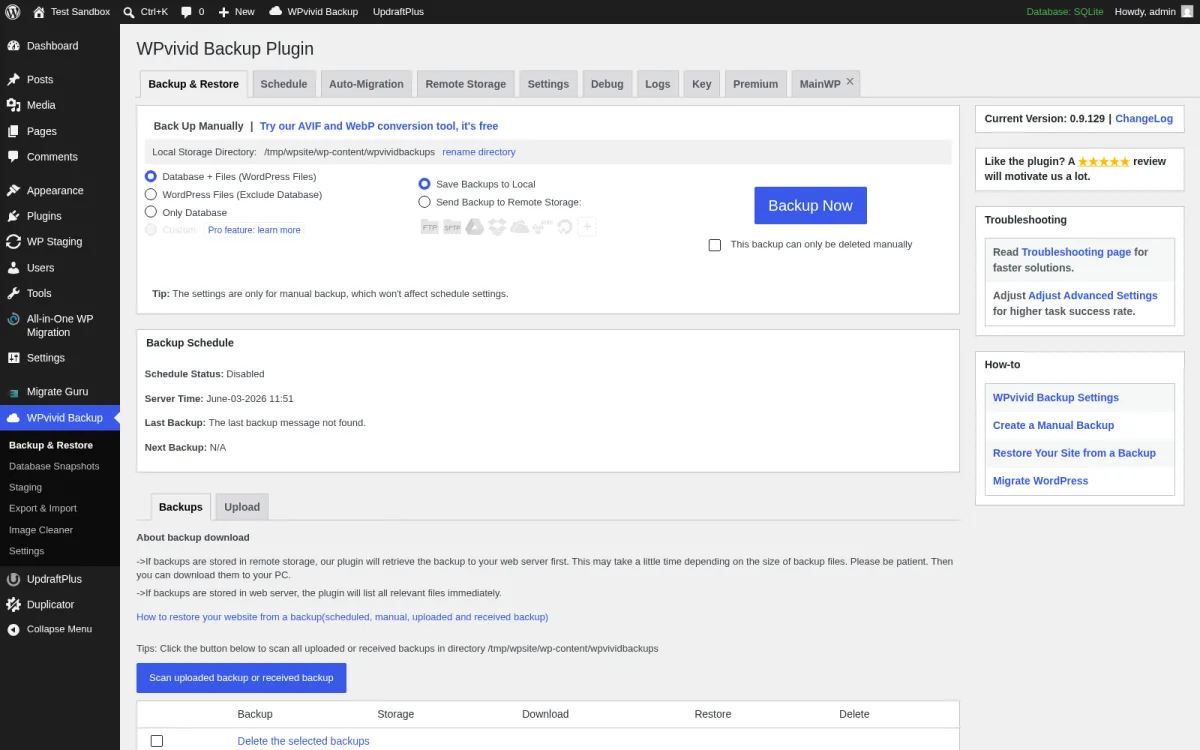
I installed WPvivid in the sandbox and opened the Backup & Restore tab at admin.php?page=WPvivid. The tab strip is the most expansive in the category: Backup & Restore, Schedule, Auto-Migration, Remote Storage, Settings, Dialog, Key, Premium, Help. The Back Up Manually form on the home tab exposes the three scopes (Database+Files, WordPress Files Excluding Database, Only Database) as radios, and the two destinations (Save backups to Localhost, Send Backup to Remote Storage) as radios. A blue Backup Now button kicks off the actual archive build. I clicked Backup Now with Database+Files and Save to Localhost selected, and the plugin produced a 47.2 MiB ZIP backup in around 14 seconds plus a per-job log under wp-content/wpvividbackups/wpvivid_log, all on the free tier without any prompt to upgrade. The Backup Schedule panel below shows your scheduled runs, the next-backup time and the last-backup status; defaults to Disabled until you opt in via the Schedule tab. The Backups and Upload sub-tabs at the bottom list saved archives and let you upload an existing backup file to restore or migrate from.
The differentiator is the Auto-Migration tab. WPvivid is one of the only plugins in the category where migration to a new domain is on the free tier and the workflow is genuinely a wizard, not a hidden upsell. Auto-Migration walks you through generating a one-time key on the source site, pasting it into the destination's WPvivid Auto-Migration tab, and triggering the move. Combined with the free cloud destinations on the Remote Storage tab (Dropbox, Google Drive, Amazon S3, Microsoft OneDrive, DigitalOcean Spaces, FTP, SFTP, all free), the free build of WPvivid covers the same ground as a paid UpdraftPlus tier and a paid Duplicator tier combined.
What sits on the paid tier is the developer-grade extras: incremental backups, backup encryption, database snapshots, multiple staging sites, advanced scheduling rules, multisite support, white-label and 24/7 ticket support. Pricing on 2026-06-03 from wpvivid.com: Blogger $49/year (2 domains), Freelancer $69/year (10 domains), Small Business $99/year (50 domains), Ultimate $149/year (unlimited domains). Lifetime tiers: Blogger $99 one-time, Freelancer $139, Small Business $199, Ultimate $299. 30-day money-back guarantee.
Pick WPvivid when you want the largest free feature set in the category and a single tab strip that covers backup, migration, scheduling, staging and cloud storage without forcing you into a paid extension. The lifetime pricing at the Small Business tier ($199 one-time for 50 domains, unlimited future updates) is one of the better pure-value picks in this roundup if you build client sites at scale.
6. WP Migrate Lite
If your migration looks more like database synchronization between local, staging and production than like a one-off host move, install WP Migrate Lite. Now owned and maintained by WP Engine (after the Delicious Brains acquisition), the plugin has 200,000+ active installs and a 4.3 rating from 314 reviews on WordPress.org. The current release (v2.7.9, shipped 2026-06-02) is tested up to WordPress 7.0 and requires PHP 5.6+.
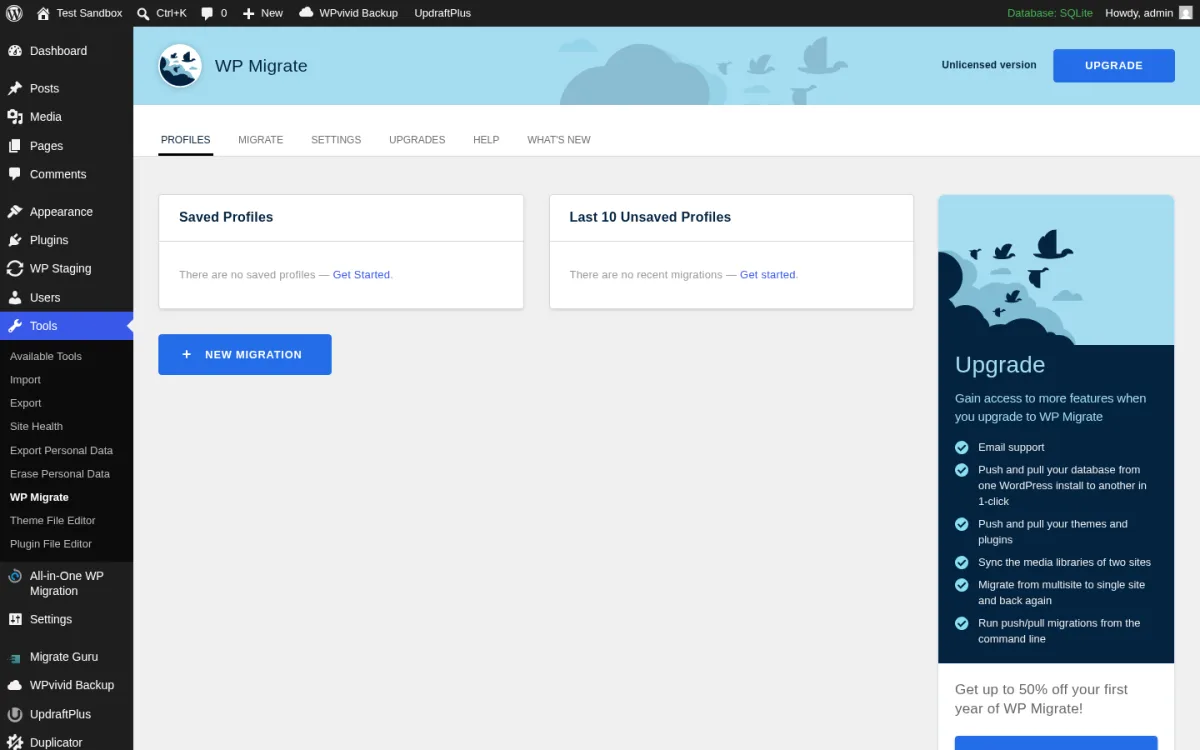
I installed WP Migrate Lite in the sandbox and opened the Profiles screen at tools.php?page=wp-migrate-db. The blue New Migration button takes you straight into the Migrate tab's Action picker: Pull (Pro-locked), Import Database (Pro-locked), Push (Pro-locked), Export, Find & Replace, and Backup Database. The three Pro-locked actions are the ones that move data between two live WordPress installs; the three free actions are the ones that run inside the current site. Export generates a downloadable .sql or .zip (database + media + themes + plugins), with full-site ZIP support and drag-and-drop import into the Local app from the WP Engine ecosystem. Find & Replace runs serialized-data-safe search-and-replace directly against the live database without an export step, which is uniquely useful when you have already moved the site and need to rewrite URLs after the fact. Backup Database creates a one-click .sql backup before you do anything destructive. I clicked the Export action, then the EXPORT button on the Migrate tab, and the test browser caught the resulting gzipped SQL file (a clean .sql.gz of the sandbox database) within a second; the free Export flow holds up end to end.
The plugin's serialized find-and-replace is the cleanest in the category. WP Migrate unserializes the data, runs the replacement on individual strings, and reserializes the result; the example in the vendor docs (`s:5:"hello"` becomes `s:11:"hello world"`) is the bug that breaks every naive search-and-replace. The plugin's profile-saving makes repeat migrations a one-click affair, the WP-CLI `export` and `find-replace` commands cover scripted runs, and the integration with Local lets a developer drag the exported ZIP straight into a fresh local environment.
The reason Lite alone is not enough for most migrations is the destination side. The free tier exports cleanly but cannot import a .ZIP back into a destination WordPress install; the destination either runs Local or uses the SQL file through phpMyAdmin. The live push/pull between two live sites is Pro-only. Pricing on 2026-06-03 from deliciousbrains.com/wp-migrate-db-pro/pricing: Basic $49/year (was $99) for 1 site, Standard $99/year (was $149) for 2 sites with WP-CLI integration, Plus $189/year (was $249) for 3 sites adding media and theme/plugin files, Premier $219/year (was $299) for unlimited sites with multisite support. 60-day money-back guarantee, 90-day price-match. Free Platinum or Premier license for verified teachers and students on a 1-year classroom license.
Pick WP Migrate Lite when you are a developer who moves the database between local, staging and production, you can use the Local app for the destination side, and you want the cleanest serialized find-and-replace in the category. The Pro Plus tier at $189/year is the right step up if you start needing live push/pull between WordPress installs and want media and theme/plugin file sync in the same command.
7. WP Staging
If your real concern is testing changes safely (a theme update, a plugin upgrade, a deployment) rather than moving host, install WP Staging. With 100,000+ active installs and a 4.8 rating from 2,459 reviews, WP Staging is the most-installed staging-first plugin on WordPress.org and the one that has expanded into backup and migration as natural extensions of its clone workflow. The current release (v4.8.1, shipped 2026-05-22) is tested up to WordPress 7.0 and requires PHP 7.0+.
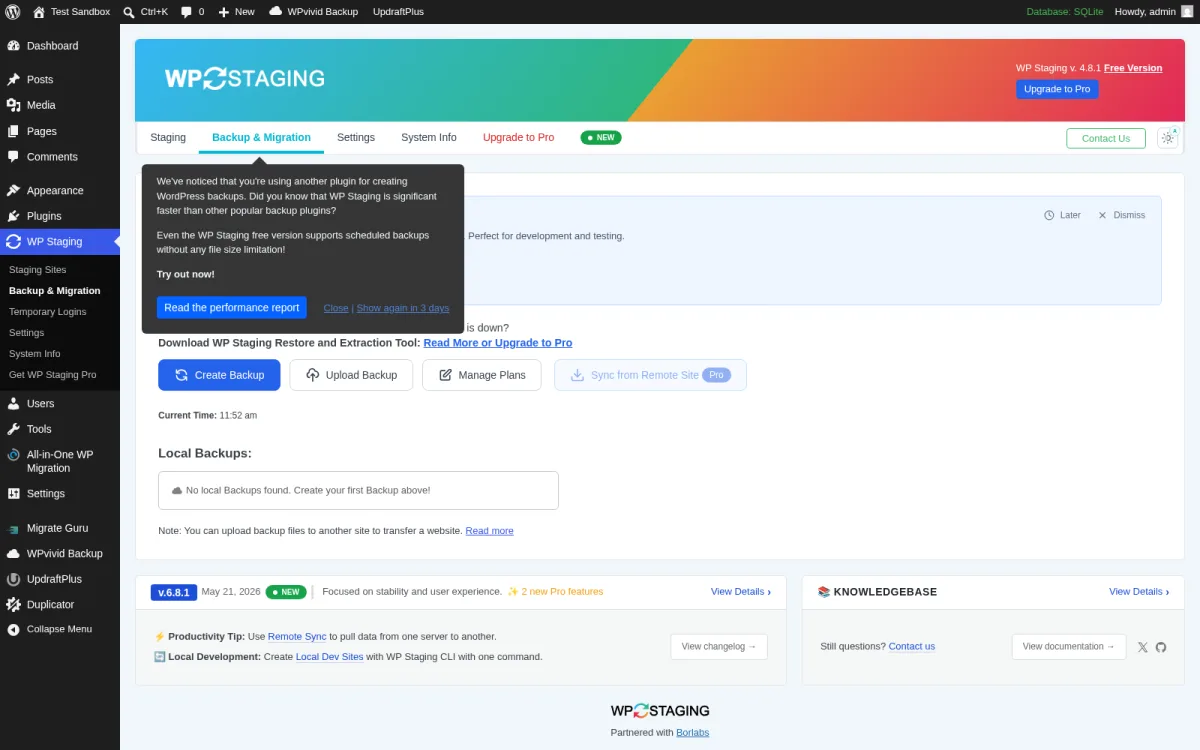
I installed WP Staging in the sandbox and opened the Backup & Migration tab at admin.php?page=wpstg_backup. The tab strip is built around the staging-first identity: Staging, Backup & Migration (with a green BETA badge), Settings, System Info, Upgrade to Pro. The Staging tab is the cleanest one-click clone-to-subdirectory flow in the category: click Create New Staging Site, choose the database tables to include, choose the wp-content files to include, and WP Staging creates an admin-only clone at yoursite.com/staging-site (or whichever subdirectory you pick) with the admin bar turned orange so you cannot accidentally edit production. Login is restricted to administrators by default, the staging site is automatically noindexed, and you can run plugin updates, theme changes and deployment dry-runs against a real copy of your production data.
The Backup & Migration tab adds the obvious extension: take a backup of the live or staging site, restore it later, and export the backup file so you can upload it on another host. The free Create Backup flow walks you through which database tables and which wp-content folders to include and produces a single backup file. The Upload Backup flow accepts an external backup file for restore. The Sync Your Site Remote Live action is the Pro-only Remote Sync feature that pulls a WordPress site securely from one server to another using an API key, and the Manage Plans action opens the WP Staging pricing page. I ran Create Backup > Start Backup with the defaults on a fresh install: WP Staging discovered 4,641 files (correctly skipping its own folders and the other backup plugins' folders), packaged the 13 database tables, finalized a 116.9 MiB .wpstg archive, then ran an integrity validation pass over all 4,642 files and signed the archive before reporting "Backup successfully created" in the on-disk job log. The free Create Backup workflow is genuinely complete, not a teaser for a paid version.
What sits on the paid tier is the rest of the migration story: Remote Sync for site-to-site pulls, push staging to production with one click, migrate WordPress to another host or domain, WP STAGING CLI (turn a backup into a local Docker development site), multisite staging and backup, scheduled cloud destinations (Dropbox, Google Drive, Amazon S3, FTP), backup retention rules and custom backup folder destinations. Pricing on 2026-06-03 from the vendor pricing page (billed in EUR with USD on checkout): Personal €89/year, Business €139/year, Developer €239/year (up to 25 sites). 14-day money-back guarantee. Several recent reviews call out that the company changes products and pricing without notification to existing customers; weigh those notes carefully before buying a lifetime tier from an aggressive comment.
Pick WP Staging when you want a real staging copy of your production site for safer plugin and theme testing, you can live with the migration-to-another-host being Pro-locked, and the free Create Backup workflow is enough for your disaster-recovery needs. If you also run a WooCommerce store on the same site, the guide to setting up a WooCommerce store covers the upstream design decisions that frame how aggressive your staging discipline needs to be.
How to choose the right WordPress migration plugin for your site
Picking among these seven is mostly a question of what your migration actually looks like.
- If you are doing a clean one-off move to a new host or domain: install Duplicator. The Lite tier handles the entire move end to end, the install-on-empty-site flow is the safest destination experience in the category, and you only need to upgrade to Pro if you also need scheduled cloud backups or a native staging environment.
- If your site is small and you want the simplest one-click export and import: install All-in-One WP Migration. The .wpress format is the most portable archive on the list, and if your site fits in the free destination cap you will not need to spend anything; if it does not, the Unlimited Extension at $69 is a one-time, no-subscription unlock.
- If your site is large and you need the migration to run off your live server: install Migrate Guru. The cloud-orchestrated migration handles up to 200 GB on the free tier, the source site stays responsive, and there is no Pro upsell on the migration itself; BlogVault is the SaaS upgrade only if you also need scheduled backups and staging.
- If you want a scheduled backup discipline first and migration as an add-on: install UpdraftPlus. The free tier handles every cloud destination you care about, the Migrator add-on is bundled with every Premium tier, and Gold at $474.81/year is the right pick the day you actually need 50 GB of UpdraftVault storage.
- If you want one free plugin to cover backup, migration, scheduled backups, cloud storage and staging: install WPvivid. The Auto-Migration tab on the free tier is the differentiator in the category, and the lifetime tier at $199 one-time for 50 domains is a strong consolidation play for an agency.
- If you are a developer moving the database between local, staging and production: install WP Migrate Lite. The serialized find-and-replace and the Local-app integration cover the developer workflow that none of the all-in-one plugins handle as cleanly, and the Pro Plus tier at $189/year is the right upgrade the day you need live push/pull.
- If your real concern is testing safely before changes hit production: install WP Staging. The clone-to-subdirectory flow is the cleanest staging UX on the list, the free backup workflow is enough for disaster recovery, and the Pro tier adds Remote Sync and push-to-live for the day your testing discipline grows into a true deployment pipeline.
One practical note: do not stack multiple migration or backup plugins on the same site at the same time. They tend to schedule cron at the same hours, fight for the same wp-content/cache and wp-content/uploads paths during archive build, and produce duplicate scheduled emails. Pick the one that fits your dominant use case, run it for a full backup cycle (one or two weeks), and only swap if it actually fails on a real migration. If you are still tightening up the routine work around your site, the regular maintenance for your WordPress site checklist covers the upstream habits (backups before updates, tested restores, staging discipline) that frame which migration plugin is right for you.
FAQ
What is the best free WordPress migration plugin in 2026?
For a one-off move, Duplicator Lite. The free tier handles the entire flow (package, install on the empty destination, run the migration wizard) without forcing you into a paid extension, and the 1,000,000+ active installs and 4.9 rating make it the safest default. For a large site or a slow source server, Migrate Guru, because the migration runs entirely on BlogVault's servers and handles up to 200 GB free. For the broadest free feature set (backup, migration, scheduled backups, cloud destinations, staging in one plugin), WPvivid.
Is All-in-One WP Migration really free?
The Export is free. The Import is free up to an internal file-size cap that depends on the destination plugin version, and that cap is the most common reason users buy the Unlimited Extension at $69. If your .wpress file is small (typically under 250 MB), the free import works as advertised. If it is larger, you have three options: split your archive (slow), pay $69 once for the Unlimited Extension (the most common path), or use a different plugin (Duplicator or Migrate Guru both handle larger files free).
Does Migrate Guru cost anything?
No. The Migrate Guru plugin is fully free on WordPress.org with no Pro upsell, the 200 GB per-site limit and the 5-distinct-sites-per-user-per-month quota are the only caps, and each registered site can be re-migrated as many times as you need. BlogVault, the parent SaaS that powers the actual migration servers, is a separate paid product for ongoing backup and staging; Migrate Guru's free migrations do not require a BlogVault subscription.
Can I migrate a WordPress site without any plugin?
Yes, but the manual path (mysqldump or phpMyAdmin export, file copy via SFTP, serialized search-and-replace via WP-CLI or a one-off script, manual import on the destination) is significantly more error-prone than any of the seven plugins above. The serialized search-and-replace step is where most manual migrations break: a plugin like WP Migrate or All-in-One WP Migration unserializes the data, runs the replacement on individual strings, and reserializes the result, while a naive sed find-and-replace corrupts the string-length prefix and breaks every option that depends on it.
Which WordPress migration plugin handles the largest sites?
Migrate Guru handles sites up to 200 GB on the free tier, with the migration running off-site on BlogVault's servers; this is the largest free cap in the category. Duplicator Pro's multi-threaded packaging is the closest paid alternative for sites where you want the archive to live on your own infrastructure. All-in-One WP Migration Pro with the Unlimited Extension removes the destination cap but the export still runs on your live server, which is a meaningful difference for sites with limited PHP memory.
Which migration plugin works for WordPress Multisite?
UpdraftPlus Personal and above ship multisite support in the free Premium tiers; Duplicator Pro supports full multisite network migration and the ability to install a multisite subsite as a standalone site; All-in-One WP Migration requires the Multisite Extension at $319 for full network migration; WPvivid Pro and WP Staging Pro both support multisite. The free tier of every plugin in this roundup handles single-site WordPress; multisite is generally a paid feature.
Can I use a migration plugin to create a staging site?
Yes. WP Staging is the cleanest free clone-to-subdirectory flow on the list, WPvivid free includes a staging-site-on-subdirectory builder, and Duplicator Pro adds native staging from the WordPress dashboard. UpdraftPlus Premium ships a basic staging feature; All-in-One WP Migration and Migrate Guru do not target staging directly. If your real concern is testing changes safely, WP Staging is the right pick.
Conclusion
There is no single "best" WordPress migration plugin in 2026 because the migration job itself is too varied. If you are doing a clean one-off move, install Duplicator. If your site is small and you want the simplest export-import flow, install All-in-One WP Migration. If your site is large and the source server is slow, install Migrate Guru. If you want scheduled backups first and migration as an add-on, install UpdraftPlus. If you want the broadest free feature set in one plugin, install WPvivid. If you are a developer syncing the database between environments, install WP Migrate Lite. If your real concern is testing changes safely, install WP Staging.
Most WordPress sites need exactly one of these plugins, not all of them. Pick the profile that matches your dominant use case, install the free version first, take a fresh backup of your live site before you do anything, run the migration against a sandbox or staging copy before you point it at production, and only upgrade to the paid tier when the limitation you hit is a real product limitation, not a hypothetical one.


