

Best Tools to Manage and Grow Your WordPress Website in 2026


Running a WordPress website in 2026 is less about installing more plugins, and more about choosing the right tool for each job. The fastest way to lose a weekend is to install three SEO plugins, two caching plugins, and a security suite that fights with all of them.
This guide is the opposite. I went through every category that a real WordPress owner has to deal with day to day, picked tools that are still actively maintained and trusted in 2026, and grouped them so you can see exactly which job each one does.
Pick one tool per category. That single rule will keep your site faster, safer, and easier to manage than any "must have 50 plugins" list ever will.
How this list is organized
The 28 tools below are sorted into 8 practical categories:
- SEO and search visibility
- Analytics and behavior insights
- Performance, caching, and images
- Security and backups
- Forms, chat, and email deliverability
- Content, writing, and design
- Booking and social growth (the FS Code stack)
- Hosting, development, and team productivity
For each tool you get a short, honest description, what it is best at, current 2026 pricing where available, and a quick "use this if" line so you can decide fast.
Pricing in this article reflects what each vendor lists on their public pricing page in 2026. Prices change often, especially first-year promotional pricing, so always confirm at checkout.
Quick category overview
| Category | Pick this if you need | Top picks in this guide |
|---|---|---|
| SEO and search visibility | On-page SEO, keyword research, indexing health | AIOSEO, Rank Math, Yoast SEO, Semrush, Google Search Console, Google Trends |
| Analytics and behavior insights | Traffic data, GA4 setup, on-page behavior | MonsterInsights, Microsoft Clarity |
| Performance, caching, and images | Faster pages, smaller images, edge delivery | WP Rocket, Cloudflare, Smush |
| Security and backups | Malware protection, firewalls, restore points | Sucuri, Wordfence, UpdraftPlus |
| Forms, chat, and email deliverability | Contact forms, live chat, bots, transactional email | WPForms, WP Mail SMTP, LiveChat, ChatBot.com |
| Content, writing, and design | Graphics, grammar, stock photos, AI drafts | Canva, Grammarly, Pexels & Pixabay, ChatGPT |
| Booking and social growth | Appointments, automated social posting, share buttons | Booknetic, FS Poster, Shared Counts |
| Hosting, dev, and team productivity | Local development, team collaboration, communication | DevKinsta, Google Workspace, Discord |
1. SEO and search visibility
If search traffic matters for your WordPress site, this is where you spend the most attention. You only need one on-page SEO plugin (do not install two), plus one keyword research tool and Google's own free tools.
All in One SEO
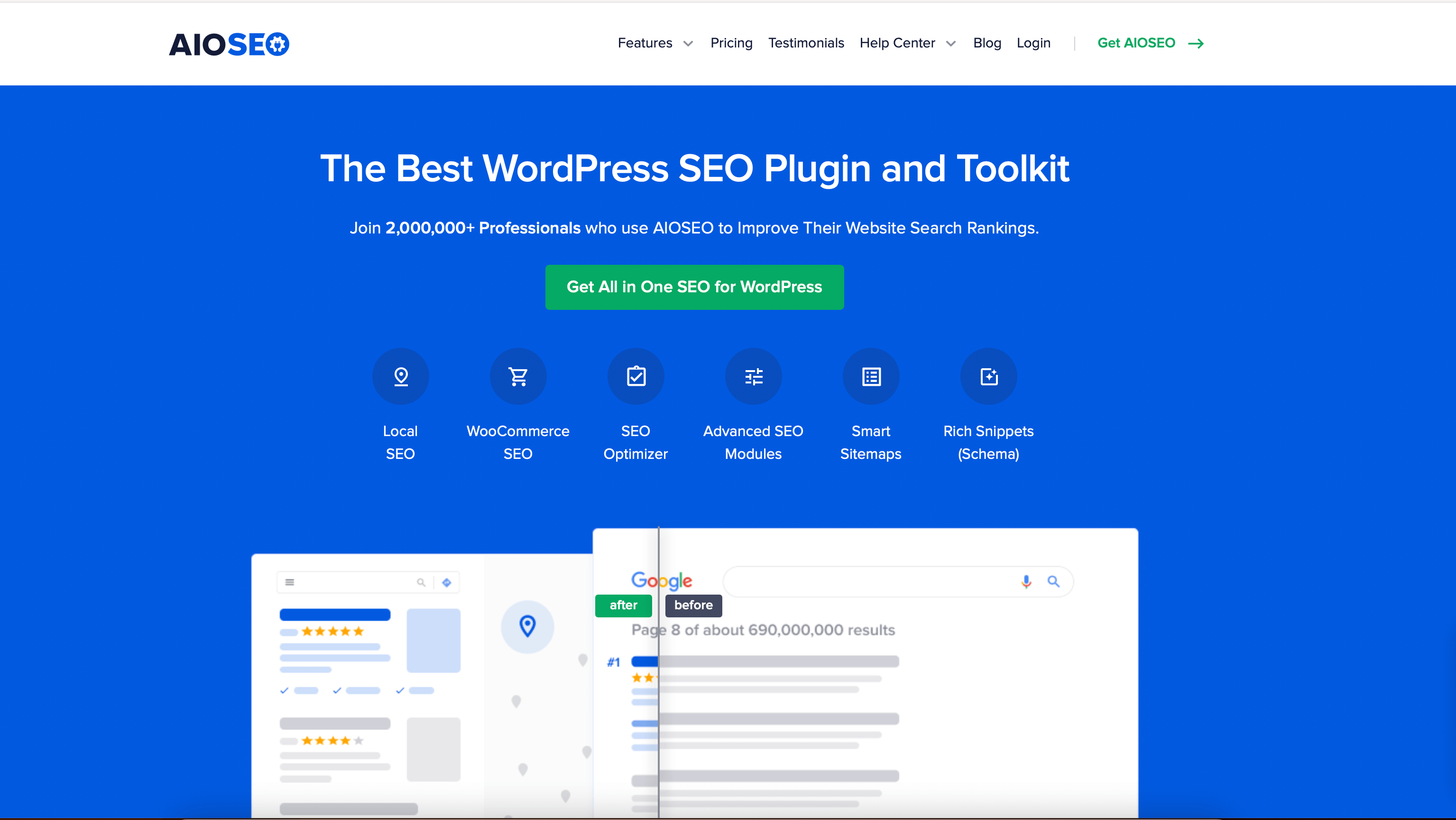
All in One SEO is one of the most polished on-page SEO plugins for WordPress. You get a setup wizard, schema markup, sitemap controls, redirect management, and a built-in SEO analysis panel right inside the WordPress dashboard.
It is a strong default pick if you want a friendly UI and do not want to think about technical SEO settings on day one.
- Free version: yes (AIOSEO Lite, on WordPress.org).
- Paid: Basic typically starts around $49.60 for the first year (renews higher), with Plus, Pro, and Elite tiers above that.
- Use this if: you want one all-in-one SEO plugin with a clean dashboard and want to avoid setting up schema and sitemaps manually.
Rank Math
Rank Math has become a serious AIOSEO and Yoast competitor. It has a generous free tier (multiple focus keywords, schema, redirections, 404 monitor), a clean setup wizard, and tight Google Search Console integration.
- Free version: yes, with a notably generous feature set.
- Paid: PRO starts at around $6.99/month billed annually (about $83.88/year) for unlimited personal sites.
- Use this if: you want a free or low-cost SEO plugin that already includes features other vendors put behind a paywall.
Yoast SEO
Yoast SEO is the long-running standard with over 10 million active installs. It is reliable, well documented, and very beginner-friendly thanks to its readability and SEO content analysis.
A reminder: never run two on-page SEO plugins at once. Pick one of AIOSEO, Rank Math, or Yoast and stick with it.
- Free version: yes.
- Paid: Premium starts at $99/year per site, with add-ons for News, Video, Local, and WooCommerce SEO.
- Use this if: you want the most familiar, content-writer-friendly SEO plugin with strong educational resources.
SEMRush

Semrush is the keyword research, competitor analysis, and SERP tracking platform most marketing teams reach for. You can see what your competitors rank for, discover keyword gaps, audit your site's on-page SEO, and track positions over time.
- Free: limited free account with a small daily query allowance.
- Paid: Pro plan starts at $139.95/month, Guru at $249.95/month, Business at $499.95/month (annual billing reduces the per-month cost).
- Use this if: you want one platform for keyword research, competitor SEO analysis, and SERP tracking.
Google Search Console

Google Search Console is non-negotiable. It shows what queries you actually rank for, which pages get clicks and impressions, which URLs are indexed, and which have crawl, mobile, or schema issues.
- Pricing: free.
- Use this if: you have any organic search goals at all. Set it up the day you launch.
Google Trends
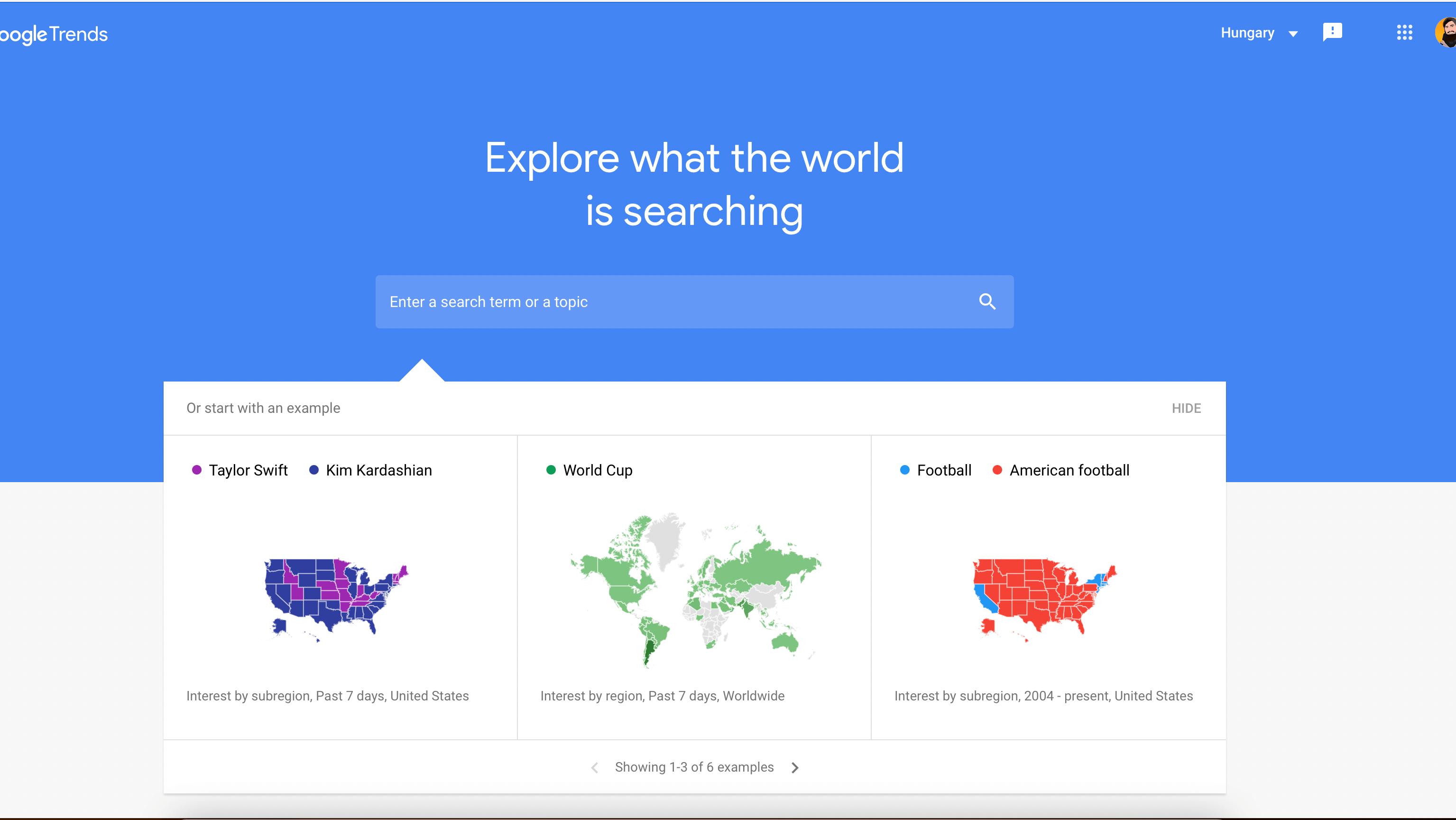
Google Trends is a free way to see whether a topic, keyword, or product category is rising or falling in interest, and where. It is great for content planning and for spotting seasonal patterns before they hit.
- Pricing: free.
- Use this if: you write content and want to spot rising topics before they become saturated.
For a hands-on walkthrough of how to pair AIOSEO or Yoast with Search Console, see our guide to free SEO plugins for WordPress.
2. Analytics and behavior insights
Once visitors land on your site, you need to know what they do, where they drop off, and which content earns the click.
MonsterInsights
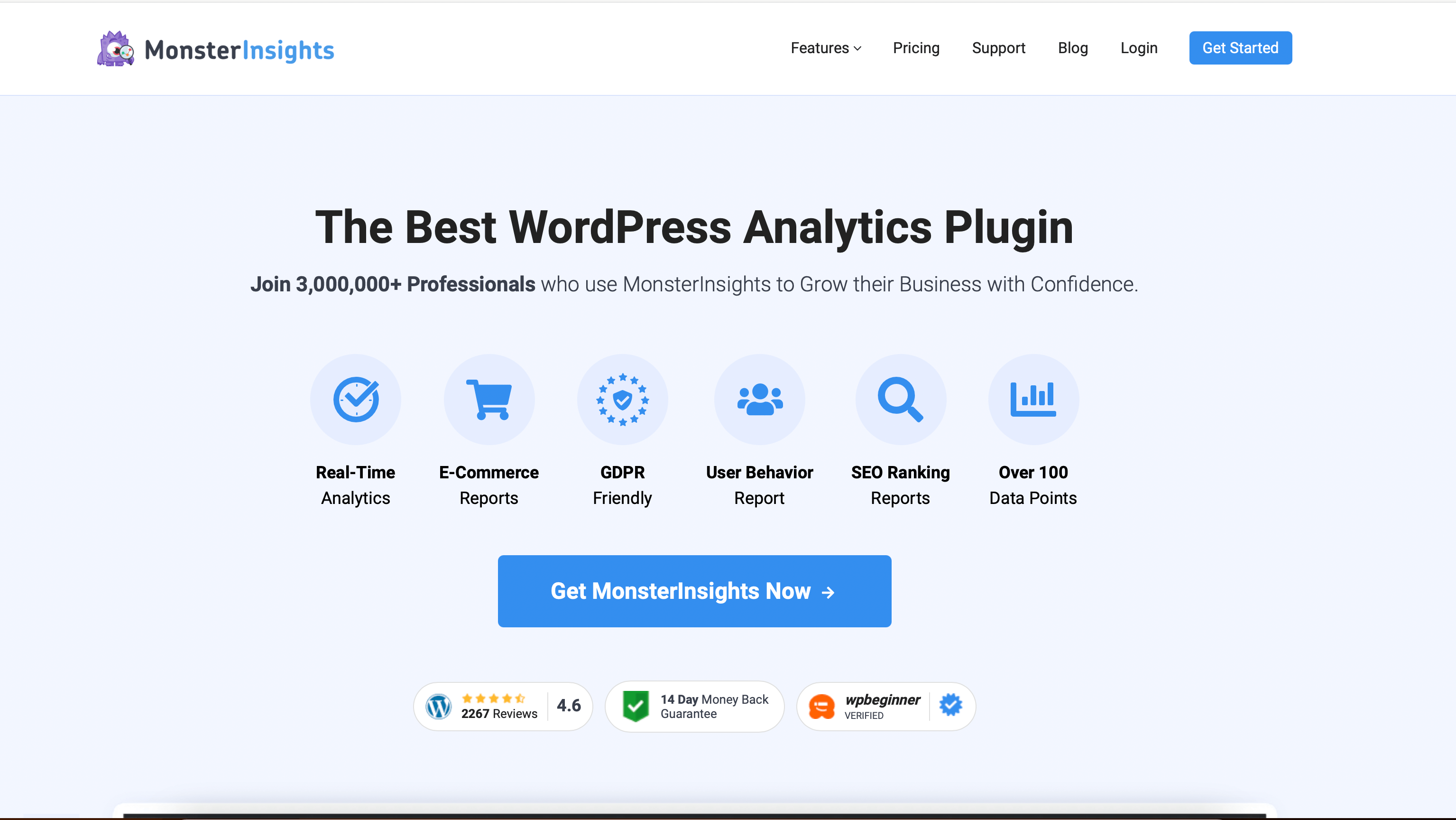
MonsterInsights is the most popular Google Analytics plugin for WordPress. It connects GA4 to your site, surfaces dashboards inside the WordPress admin, and adds eCommerce tracking for WooCommerce, Easy Digital Downloads, and MemberPress without you touching code.
- Free version: yes (MonsterInsights Lite).
- Paid: Plus starts around $99.60 for the first year (regular renewal higher), with Pro and Agency tiers above.
- Use this if: you want GA4 set up correctly without editing tracking code, and you want analytics visible inside WordPress admin.
Microsoft Clarity
Microsoft Clarity is a free behavior analytics tool that gives you session recordings, heatmaps, and rage-click detection without sampling, even on small sites. It complements GA4 (which tells you "what") with the "why."
- Pricing: free, no traffic limits, no paid tier.
- Use this if: you want to see real session recordings, scroll depth, and dead clicks without paying for Hotjar.
3. Performance, caching, and images
Slow sites kill conversions and rankings. You need a caching plugin, an edge layer, and image optimization. Three tools, one job each.
WP-Rocket

WP Rocket remains the easiest premium caching plugin for WordPress. Page caching, browser caching, GZIP compression, lazy loading, CSS and JavaScript minification, and database cleanup are all on by default with sensible settings.
- Free version: no.
- Paid: Single site $59/year, Plus (3 sites) $119/year, Multi (unlimited sites) $299/year.
- Use this if: you want fast results without learning every caching setting.
Cloudflare
Cloudflare free plan adds a global CDN, DDoS protection, free SSL, and modern HTTP/3 to any site in minutes. The paid Pro plan adds image optimization, the Web Application Firewall, and more aggressive performance rules.
- Free version: yes (very generous).
- Paid: Pro starts at $25/month per domain; Business and Enterprise above.
- Use this if: you want a free speed and security boost at the edge before you touch your origin server.
Smush
Smush is a long-standing image optimization plugin from WPMU DEV. It compresses images on upload, lazy loads them, and converts to WebP on supported tiers. If Smush does not fit, ShortPixel and EWWW are strong alternatives.
- Free version: yes.
- Paid: Smush Pro is bundled with WPMU DEV plans, starting around $7.50/month on annual billing.
- Use this if: you want a friendly, well-known image optimization plugin with a free tier.
For deeper performance tuning, work through our WordPress speed optimization guide and our list of free plugins to speed up your WordPress site.
4. Security and backups
If your site goes down, you need three things: a firewall to block attacks, malware scanning to clean infections, and backups to restore from when prevention fails.
Sucuri
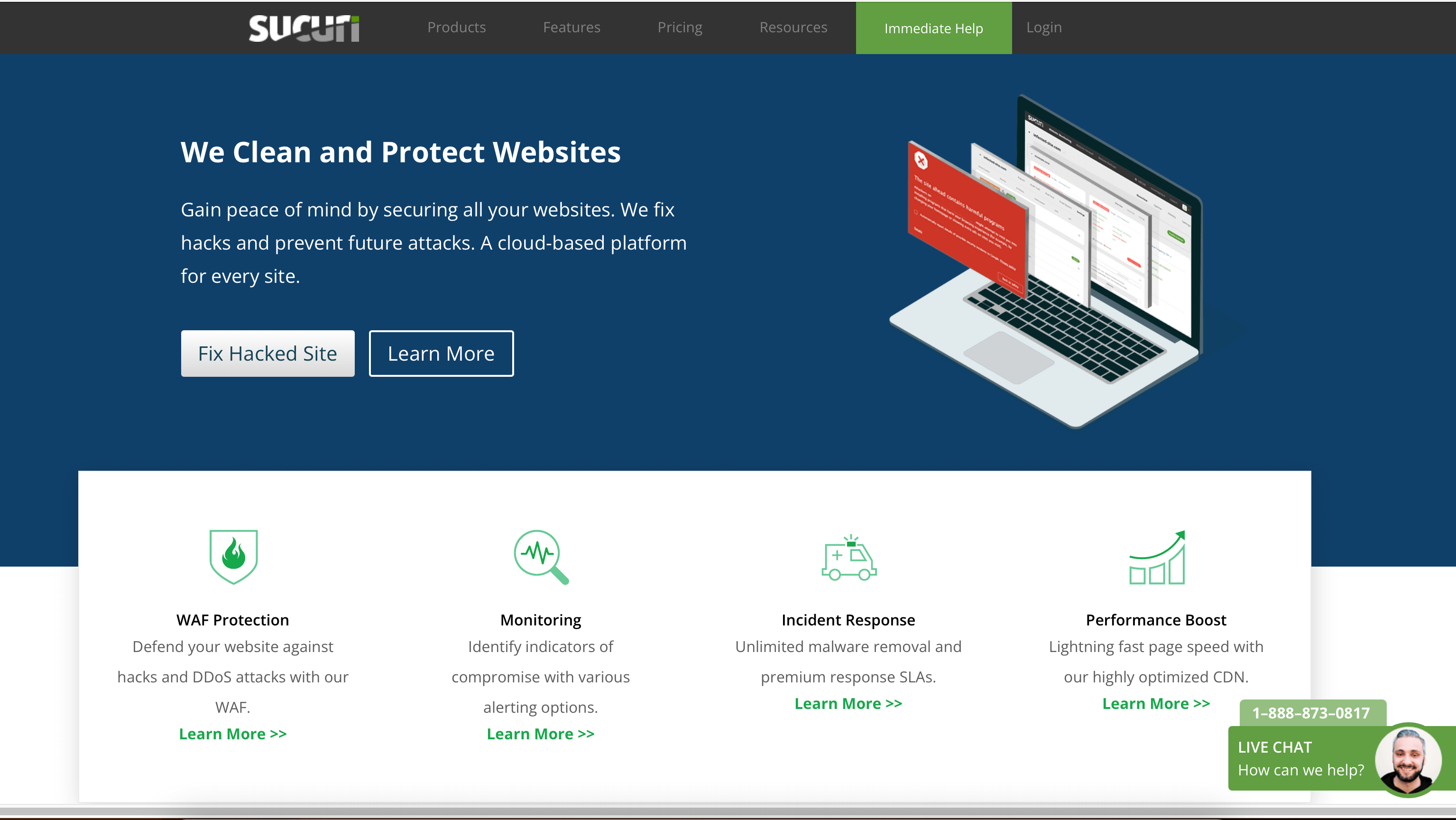
Sucuri is one of the most trusted website security companies. The free Sucuri Security plugin scans your site for known issues, and the paid Sucuri Platform adds a cloud WAF, CDN, and full malware cleanup, including unlimited cleanups even on entry plans.
- Free version: yes (scanner plugin).
- Paid: Sucuri Platform Basic starts at $199.99/year, Pro at $299.99/year, Business at $499.99/year.
- Use this if: you want a serious WAF and a 24/7 cleanup team on call.
Wordfence
Wordfence is the most installed WordPress security plugin and runs a real-time threat feed plus an endpoint firewall and malware scanner. The free version is genuinely useful; Premium adds real-time threat intelligence and country blocking.
- Free version: yes.
- Paid: Wordfence Premium starts at $119/year per site, with Care and Response tiers above.
- Use this if: you want a strong free security baseline and an upgrade path that does not require leaving the plugin.
For more options, compare picks in our free WordPress security plugins roundup.
UpdraftPlus
UpdraftPlus is the most popular WordPress backup plugin. It schedules backups, stores them off-site (Google Drive, Dropbox, S3, and more), and restores with a click. Backups are the safety net that lets every other security decision feel less scary.
- Free version: yes.
- Paid: Premium starts at $70/year for two sites.
- Use this if: you do not yet have automated off-site backups. This is the first plugin you should install.
5. Forms, chat, and email deliverability
Visitors need a way to contact you, get help in real time, and actually receive your emails.
WPForms
WPForms is the most beginner-friendly contact form plugin. Drag-and-drop builder, instant notifications, conditional logic, payment forms, surveys, and a clean GA4-friendly tracking layer.
- Free version: yes (WPForms Lite).
- Paid: Basic $49.50/year (first year), with Plus, Pro, and Elite tiers above.
- Use this if: you want a form builder that non-developers can ship in 10 minutes.
Compare it with similar options in our best WordPress contact form plugins guide.
WP Mail SMTP
WP Mail SMTP fixes the single most common WordPress problem: emails (contact forms, password resets, WooCommerce receipts) silently going to spam. It routes WordPress email through a real SMTP provider so messages actually arrive.
- Free version: yes.
- Paid: Pro starts at $49/year and adds dedicated mailers, email logs, and weekly reports.
- Use this if: your contact form emails sometimes do not arrive. Install this before anything else email-related.
LiveChat

LiveChat is a polished live chat platform with a clean WordPress integration. Routing, ticketing, chatbots, AI summaries, and segmentation are all baked in.
- Free trial: yes (14 days).
- Paid: Starter from $20/agent/month (annual), Team from $41/agent/month, Business from $59/agent/month.
- Use this if: you have humans available to chat and want a mature platform.
ChatBot
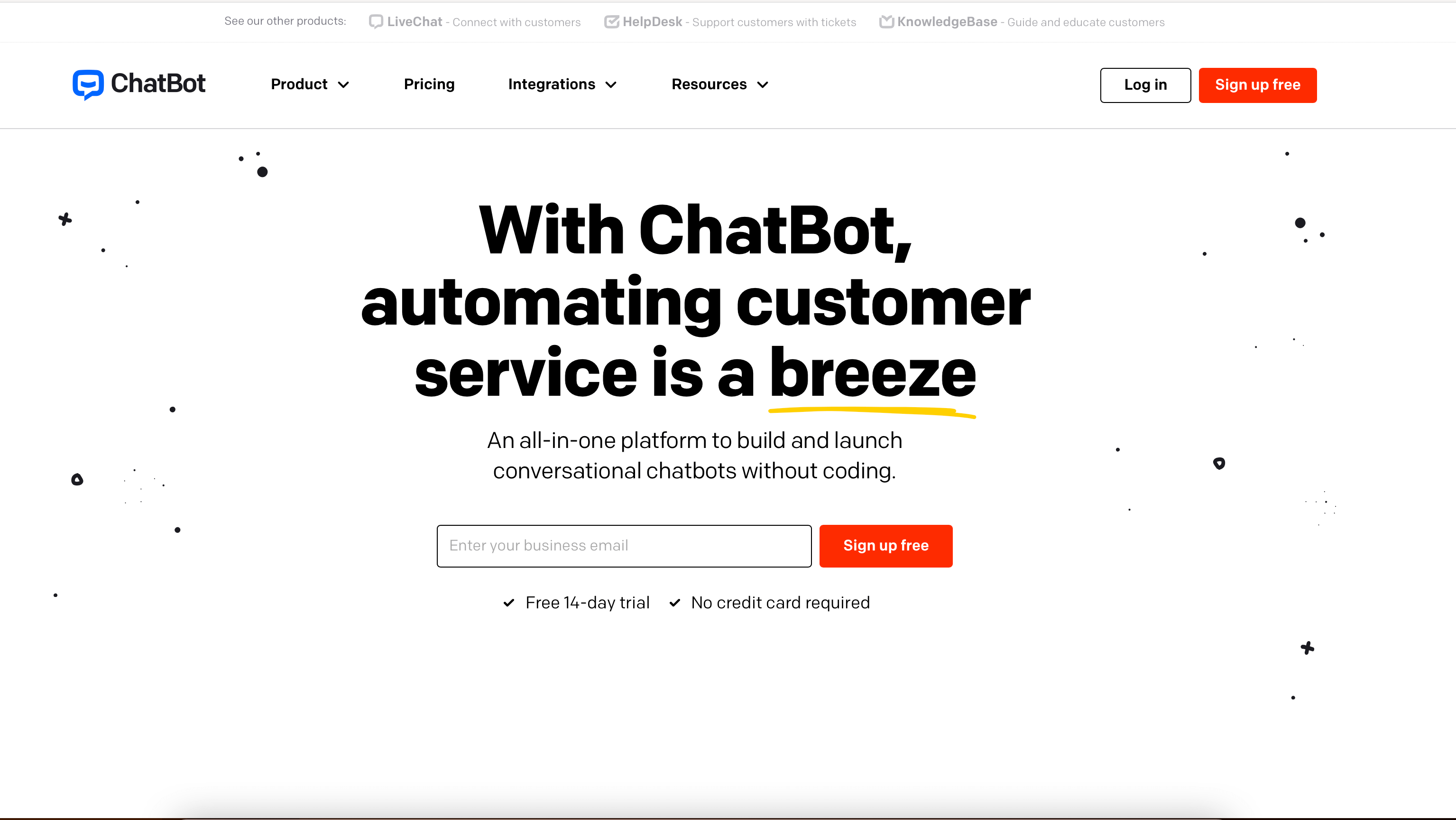
ChatBot.com (from the same company as LiveChat) is a code-free bot builder with drag-and-drop story flows, ready-made templates, and AI fallback. It plays well alongside LiveChat if you already use it.
- Free trial: yes (14 days).
- Paid: Starter from $52/month (annual), Team from $142/month, Business from $424/month.
- Use this if: you want an automated front line that answers FAQs before a human gets pinged.
For more chat picks, see our best live chat plugins for WordPress roundup.
6. Content, writing, and design
Even the best WordPress site needs words, images, and graphics that look professional.
Canva
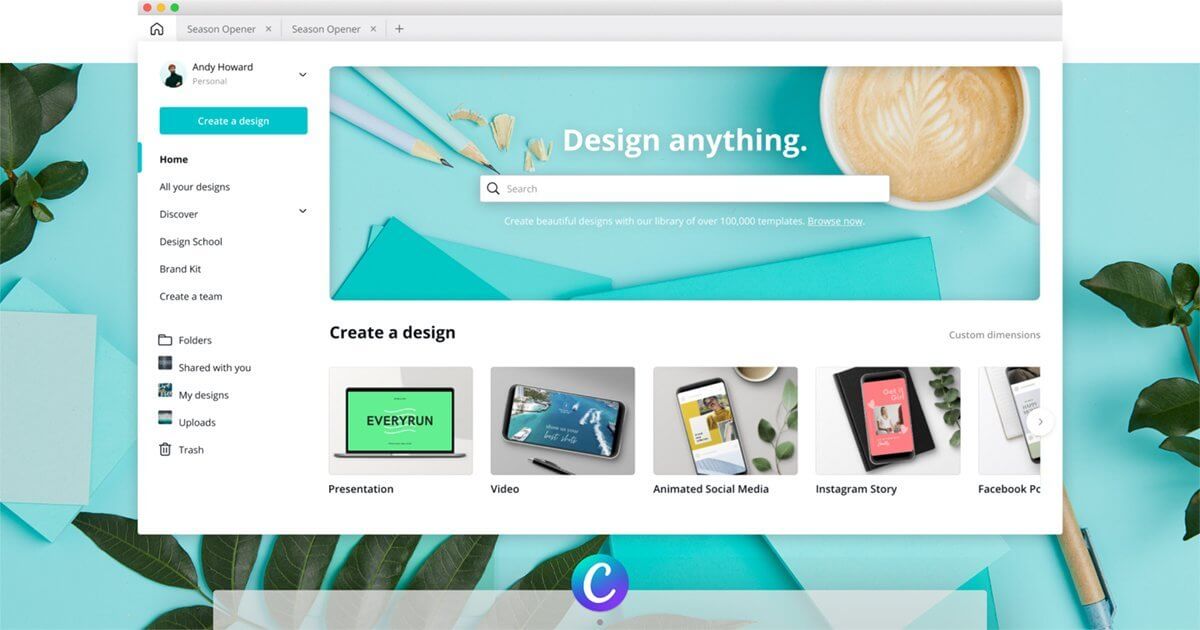
Canva is the go-to drag-and-drop design tool for blog featured images, social posts, infographics, presentations, and brand kits. The template library and AI image tools cover almost any layout need.
- Free version: yes.
- Paid: Canva Pro is $120/year (or $15/month) for individuals; Teams plans for multi-seat brands.
- Use this if: you publish content regularly and need polished visuals without hiring a designer.
Grammarly
Grammarly catches spelling, grammar, tone, and clarity issues across the browser, Microsoft Word, and the WordPress editor. The 2026 version leans heavily on AI rewriting suggestions.
- Free version: yes.
- Paid: Premium is $12/month billed annually (about $144/year).
- Use this if: you write a lot and want a second pair of eyes that never sleeps.
Pexels and Pixabay
Pexels and Pixabay both offer large libraries of free stock photos and videos under permissive licenses. They are the safest way to find royalty-free media without legal headaches.
- Pricing: free.
- Use this if: you need stock photos and want to avoid risky image scraping.
ChatGPT
ChatGPT is now part of most content workflows in 2026 as a brainstorming, outlining, and editing assistant. Used carefully (you still need to fact-check, add your own experience, and rewrite for voice) it speeds up content production without flattening quality.
- Free version: yes.
- Paid: ChatGPT Plus is $20/month, Pro and Business tiers above.
- Use this if: you want help outlining, repurposing, or editing content without replacing your own judgment.
7. Booking and social growth (the FS Code stack)
These two FS Code plugins are purpose-built to solve two of the biggest growth problems on a WordPress site: accepting bookings, and publishing to every social channel without doing it by hand.
Booknetic
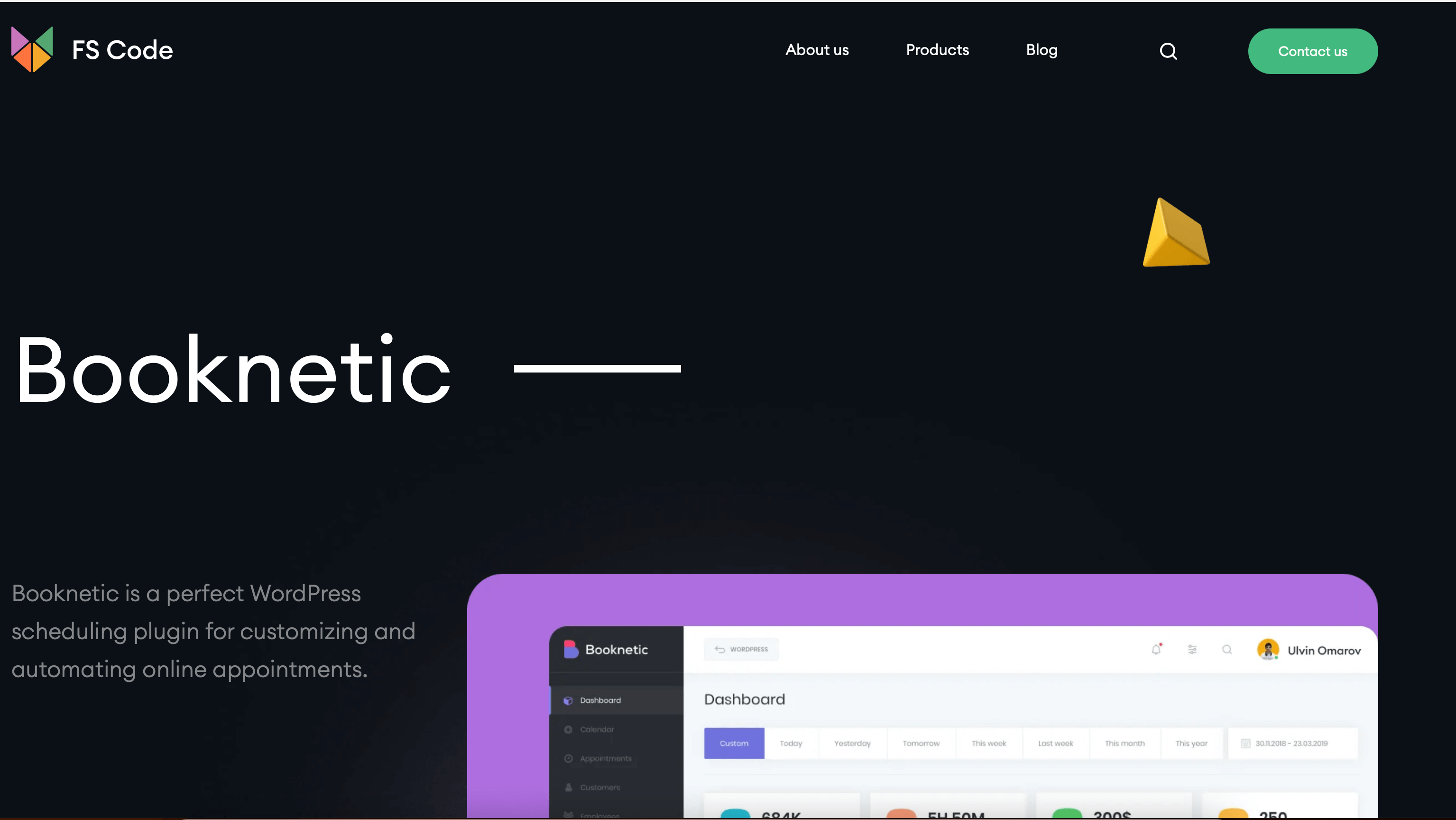
Booknetic is a full-featured WordPress appointment booking plugin used by salons, clinics, consultants, gyms, dentists, lawyers, and service businesses. You get a custom booking flow, staff and location management, payments, deposits, Zoom and Google Meet integration, SMS and WhatsApp reminders, and a customer panel.
- Pricing (annual): Basic $45/year intro ($89/year regular) for 1 domain, Standard $99/year intro ($199/year regular), Premium $199/year intro ($399/year regular), Elite $299/year intro ($599/year regular) for unlimited domains. See Booknetic pricing for the current promo.
- Pricing (lifetime): one-time Lifetime plans start at $99 intro ($199 regular) for Basic Lifetime, with 12 months of support included and lifetime updates. Higher Lifetime tiers add more domains and add-ons.
- Use this if: you take appointments on your WordPress site and want a self-hosted booking system. Annual plans suit teams that want ongoing support; Lifetime suits owners who prefer a one-time investment with no recurring fees.
For category comparisons, see our best WordPress appointment booking plugins roundup.
FS-Poster
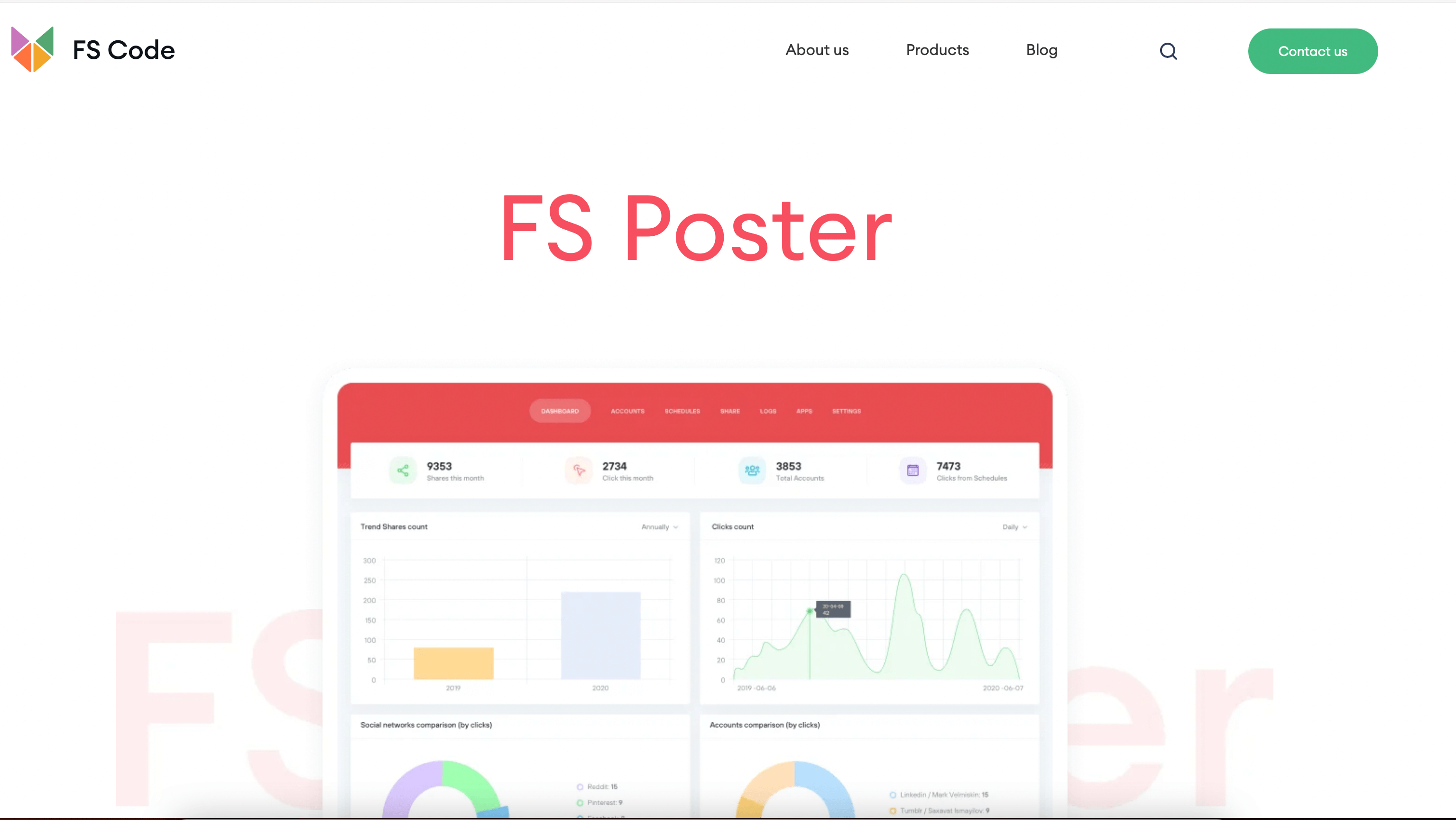
FS Poster is a WordPress auto-poster and scheduler that publishes posts to 26 social networks (Facebook, X, Instagram, LinkedIn, Threads, TikTok, YouTube, Pinterest, Telegram, Reddit, Bluesky, Mastodon, VKontakte, Odnoklassniki, and more), with scheduling, re-publishing, bulk sharing, and per-network customization. Google Business profiles, LinkedIn Company pages, Facebook groups, YouTube Community, and YouTube Shorts are supported on top.
- Pricing (annual): Single $58/year intro ($65/year renewal) for 1 site, Plus $109/year intro ($195/year regular) for 3 sites plus 3 stagings, Developer $229/year intro ($449/year regular) for 15 sites plus 15 stagings. See FS Poster pricing for the current promo.
- Pricing (lifetime): Lifetime is a one-time payment of $490 intro ($890 regular) for 30 sites plus 30 stagings, with all networks included.
- Use this if: you publish a blog and want every new post to show up automatically across all your social channels. Single is the typical first-site pick; Lifetime makes sense for agencies or owners who do not want renewals.
Shared Counts
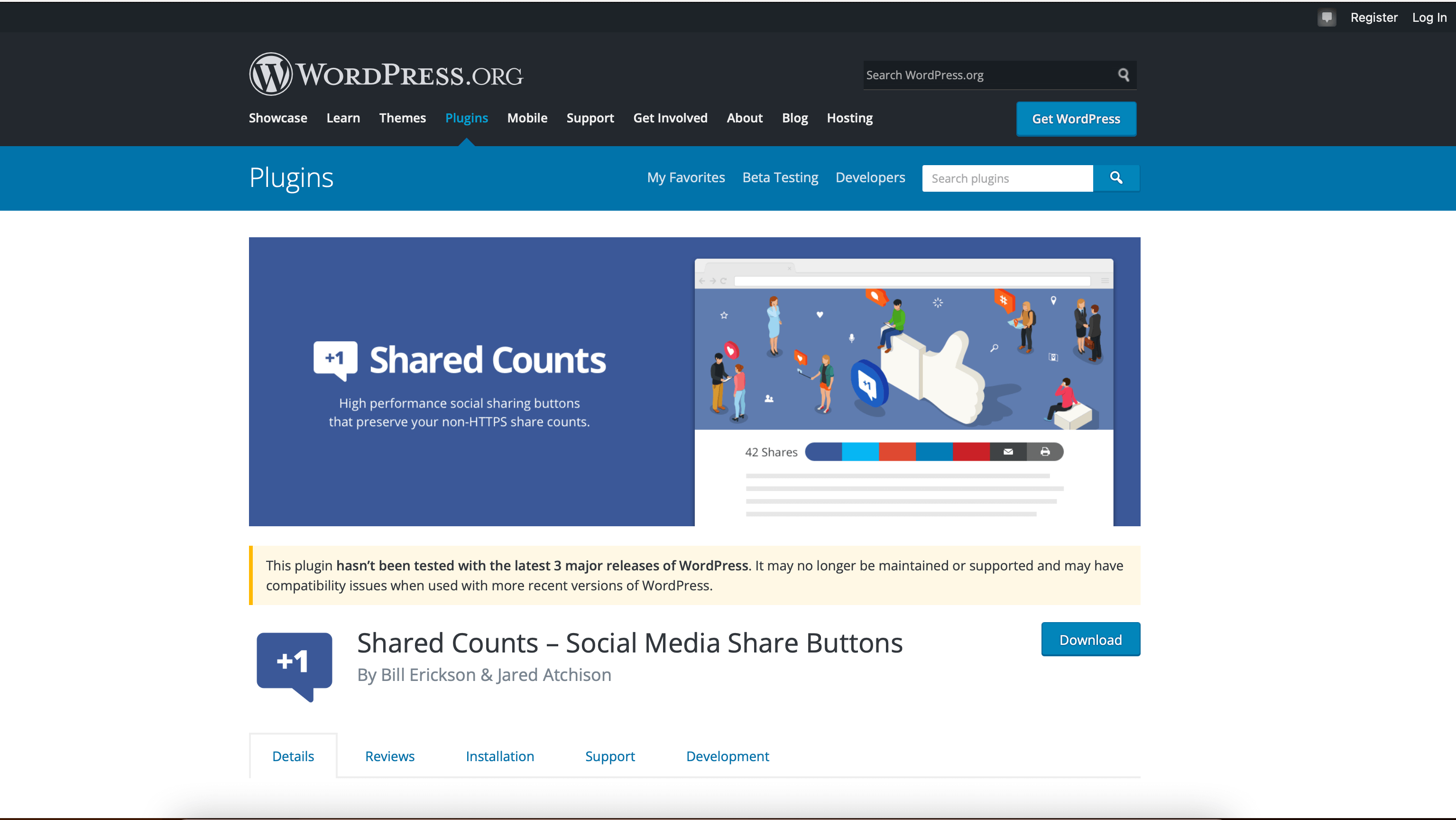
Shared Counts is a lightweight social share buttons plugin that displays clean share buttons (Facebook, X, Pinterest, LinkedIn) and a share count without slowing your site down. No external trackers, no cookies.
- Pricing: free on WordPress.org.
- Use this if: you want fast, privacy-friendly share buttons without the bloat of social plugins that load five remote scripts per page.
For more options that grow social reach, see our best WordPress social media plugins roundup.
8. Hosting, development, and team productivity
This last group is about everything around the site: where it is hosted, where you build it, and how your team talks.
DevKinsta
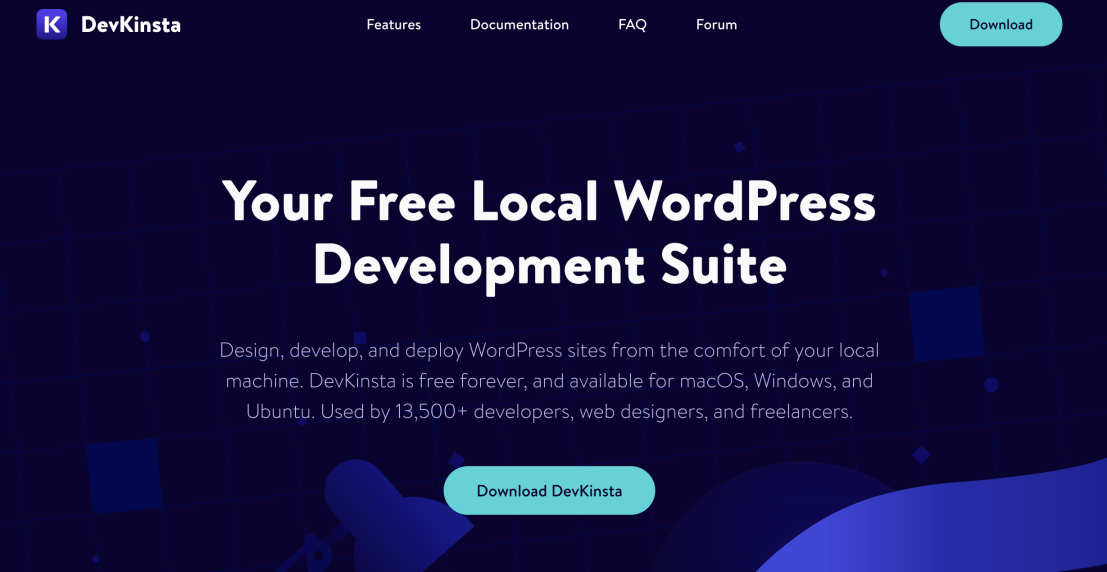
DevKinsta is a free local WordPress development environment from Kinsta, available for macOS, Windows, and Ubuntu. You can spin up a local WordPress site in one click, work on themes and plugins safely, then push to a Kinsta production environment.
- Pricing: free.
- Use this if: you want a friendly local environment, especially if you already host on Kinsta.
For production hosting picks, see our best WordPress hosting plans comparison.
Google Workspace
Google Workspace bundles Gmail on your domain, Calendar, Meet, Drive, Docs, Sheets, Slides, and Forms. It is the simplest way to give your team a professional email address and a shared document workspace, and it integrates well with most WordPress workflows.
- Free trial: yes (14 days).
- Paid: Business Starter $7/user/month, Standard $14/user/month, Plus $22/user/month.
- Use this if: you need professional email on your domain plus shared docs and calendars.
For other Google products worth pairing with WordPress, see our Google tools you should use for your WordPress website article.
Discord

Discord is a free voice, video, and text communication app. WordPress agencies, plugin communities, and growing teams use it for client servers, internal team channels, and community building around a brand or product.
- Pricing: free; Nitro starts at $9.99/month per user for cosmetic and quality-of-life perks.
- Use this if: you want a free, lightweight team or community chat that is easier than Slack to invite people to.
How to choose the right tools for your site
A simple decision flow:
- Pick one SEO plugin. Not two. AIOSEO, Rank Math, or Yoast. Set up Search Console the same week.
- Add one caching plugin and Cloudflare. WP Rocket plus Cloudflare free covers most sites.
- Pick one security plugin and a backup plugin. Wordfence (or Sucuri) for protection, UpdraftPlus for backups.
- Add forms, deliverability, and chat only when you need them. WPForms plus WP Mail SMTP is the safe baseline.
- Buy design and writing tools only if you publish content. Canva and Grammarly first; ChatGPT if you write a lot.
- Add Booknetic if you take appointments, and FS Poster if you publish often. They both pay back the cost quickly because they eliminate manual work.
- Treat hosting and productivity as foundations, not extras. A slow host and a chaotic team destroy more traffic than any plugin can recover.
FAQ
What is the minimum set of tools every WordPress site needs in 2026?
At a bare minimum: one SEO plugin, Google Search Console, a caching plugin, a security plugin, an off-site backup plugin, and WP Mail SMTP for email deliverability. That covers the bottom of the funnel for almost any site.
Can I install two SEO plugins to be safe?
No. Two on-page SEO plugins (for example AIOSEO and Yoast at the same time) will create duplicate meta tags, conflicting schema, and broken sitemaps. Choose one and stick with it.
Are free WordPress tools enough?
For many small sites, yes. Free Yoast or Rank Math, Wordfence, UpdraftPlus, Cloudflare free, Pexels, Canva free, and Microsoft Clarity will run a small site competitively. Paid tools mostly buy time, polish, and support.
How often should I revisit my tool stack?
About every 12 months. Tools get bought, renamed, or fall behind. A yearly audit (which plugins you actually open, which subscriptions are paid but unused) usually frees up budget and improves performance.
Do AI writing tools like ChatGPT hurt SEO?
Only if you publish unedited AI text at scale. Google's helpful content updates penalize low-effort, low-value pages, not the use of AI itself. Use AI to outline and edit, but fact-check, add original experience, and rewrite for your voice.
What is the best free WordPress security plugin?
Wordfence's free version is the most installed for a reason: real-time scanning, firewall, login protection, and threat alerts. Pair it with UpdraftPlus for backups and you have a solid free safety net.
Do I need both Cloudflare and a caching plugin?
Yes, they do different jobs. Cloudflare caches static assets at the edge and absorbs traffic spikes. A WordPress caching plugin like WP Rocket generates and serves cached HTML for logged-out visitors. Together they are much faster than either alone.
Should I switch from older Google Analytics setups?
If you have not already, yes. GA4 is the only supported version in 2026. MonsterInsights or Site Kit makes the switch painless.
Conclusion
The best tools to manage and grow a WordPress website in 2026 are not the longest list, they are the right one. Pick one tool per job, get them working, then come back next year and audit again.
If you take appointments through your site, start with Booknetic. If you publish content and want it on every social channel automatically, start with FS Poster. Pair them with a tight SEO, analytics, performance, and security stack, and you have a WordPress site that can grow without falling over.


