

WordPress SEO Audit Checklist for 2026: 13 Steps to Boost Your Rankings


Search engines have changed a lot since the last time most WordPress owners ran a serious SEO audit. Helpful Content updates, mobile-first indexing, AI Overviews, and the move from FID to INP as a Core Web Vital have all reshaped what "SEO-healthy" actually means in 2026. If your traffic is flat or declining, the cause is rarely one big issue. It is usually a stack of small technical and content gaps that a structured SEO audit can surface in an afternoon.
This guide is a practical, tool-agnostic WordPress SEO audit you can run on any site, with or without a paid SEO suite. We have refreshed it for 2026 so every check reflects current Google guidance and the WordPress ecosystem as it stands today. Before you start, it helps to understand why WordPress SEO matters in the first place so the fixes below land in the right context.
What is SEO Audit?
A WordPress SEO audit is a structured review of every signal Google (and Bing, and increasingly AI search engines) uses to decide whether your site deserves to rank. It covers four layers:
- Technical SEO: indexing, crawling, HTTPS, sitemap, robots.txt, canonical tags, redirects, structured data.
- On-page SEO: titles, meta descriptions, headings, content quality, internal links, images.
- Performance and UX: Core Web Vitals (LCP, INP, CLS), mobile usability, layout stability.
- Off-page signals: backlink profile, brand mentions, topical authority.
The goal is not to chase a perfect score in any single tool. It is to find the issues that are actively suppressing your rankings, fix the highest-impact ones first, and document what you changed so the next audit takes less time.
How often should you run an SEO audit?
For most WordPress sites, a full audit every quarter is enough, plus a lightweight monthly check inside Google Search Console for new errors. Run a full audit immediately after any of the following:
- A Google core update or Helpful Content update.
- A site migration, redesign, theme change, or major URL restructure.
- A noticeable traffic drop in GSC or Google Analytics 4.
- Adding or removing a large batch of content.
- Switching hosts, CDN, or major plugins (especially SEO, caching, or page builders).
Tools you need for a 2026 WordPress SEO audit
You do not need an expensive stack. A solid free baseline is:
- Google Search Console for indexing, queries, Core Web Vitals, and structured data reports.
- Google PageSpeed Insights (pagespeed.web.dev) for Core Web Vitals diagnostics powered by Lighthouse and CrUX.
- Google Rich Results Test and the Schema.org Validator for structured data.
- Bing Webmaster Tools for Bing and ChatGPT search visibility.
- A WordPress SEO plugin: All in One SEO, Yoast SEO, Rank Math, or SEOPress. Any of the major options is fine. If you are still picking one, see our comparison of free WordPress SEO plugins.
- A crawler such as Screaming Frog SEO Spider (free up to 500 URLs) or the free Ahrefs Webmaster Tools site audit.
Paid suites like Semrush or Ahrefs add depth on backlinks, keyword tracking, and competitor analysis, but everything in this checklist can be done with free tools.
1. Check your website's visibility.
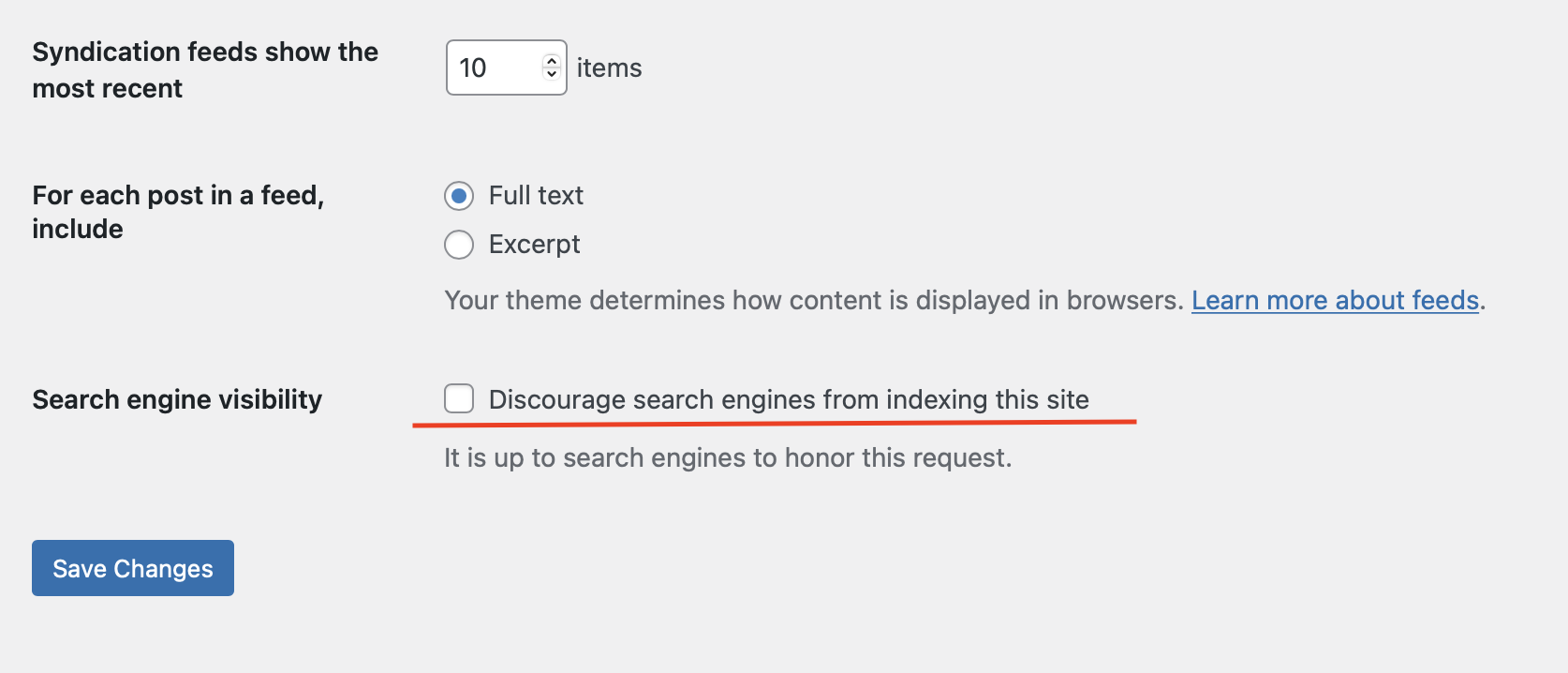
WordPress ships with a "Discourage search engines from indexing this site" option that hides your whole site from Google. It is the single fastest way to wipe out organic traffic, and it is easy to leave enabled after a staging migration.
- In WP Admin, go to Settings, Reading.
- Make sure Search engine visibility is unchecked.
- Open
https://yourdomain.com/robots.txtand confirm it does not containDisallow: /. - In Google Search Console, open Pages and check that your indexed page count looks reasonable for your site size. Big gaps between submitted and indexed pages usually point to content quality, duplicate content, or crawl-budget problems.
If you use a staging URL, keep "Discourage search engines" enabled there and use a separate plugin or server-level password to block it. Never rely on robots.txt alone to keep staging private.
2. Make sure that your website uses HTTPS.
HTTPS has been a ranking signal since 2014, and modern browsers flag any HTTP-only form as "Not secure". Most hosts now offer free Let's Encrypt SSL certificates, so there is no reason to run HTTP in 2026.
Check:
- Every page loads over
https://with a valid certificate (no padlock warning). - All HTTP URLs 301-redirect to HTTPS at the server level, not just inside WordPress.
- There are no mixed-content warnings in the browser console (an HTTP image inside an HTTPS page).
- Internal links, theme assets, and database content do not hard-code
https://. Run a search-and-replace plugin like Better Search Replace if needed, on a backup first.
3. Check WordPress URL Settings
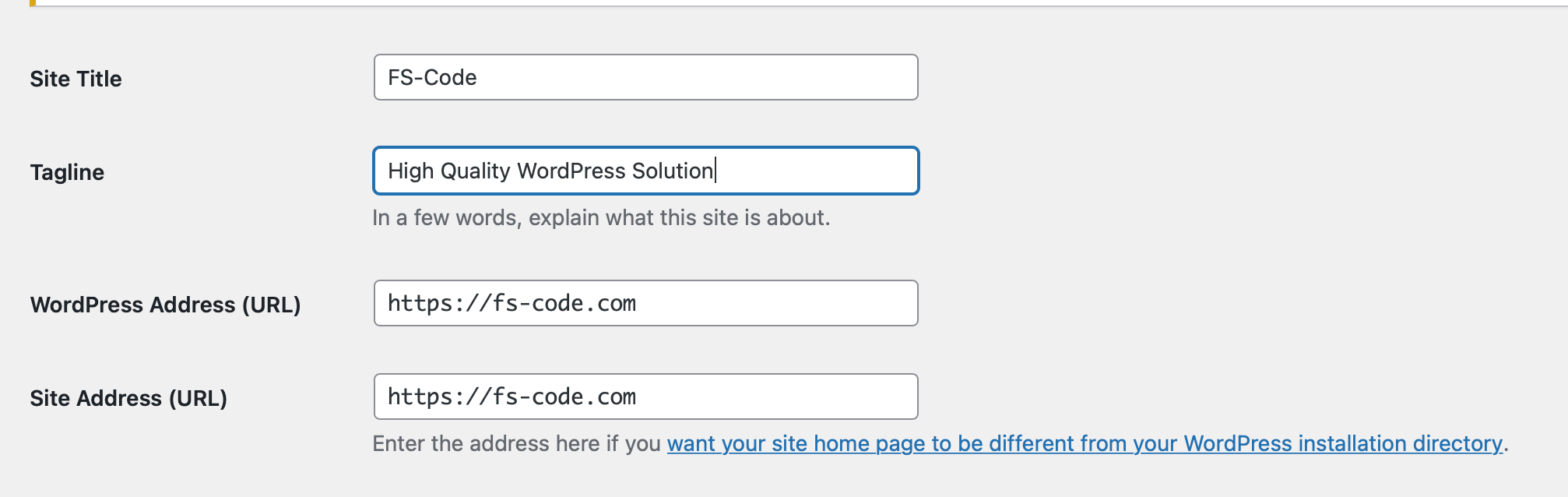
WordPress lets the same content appear under several URLs: https://, https://, www, non-www, trailing slash, no trailing slash, /?p=123, and so on. Google treats each of these as a separate URL by default, which dilutes ranking signals.
- In Settings, General, set WordPress Address (URL) and Site Address (URL) to the exact same canonical version (for example
https://www.yourdomain.com). - In Settings, Permalinks, choose a clean, descriptive structure (Post name is the standard recommendation).
- Confirm your SEO plugin outputs a self-referencing
rel="canonical"tag on every URL. - Test alternate versions of your homepage URL and confirm they all 301 to the same canonical.
4. Find and fix broken links on your WordPress website
Broken links waste crawl budget and create dead ends for users. Redirect chains (A redirects to B redirects to C) slow down page loads and dilute link equity.
- Run a full crawl with Screaming Frog, Ahrefs Webmaster Tools, or a free WordPress broken-link checker.
- Export every 4xx URL. Decide for each one: redirect to the closest replacement, restore the original page, or let it 410 if the content is genuinely gone.
- Find all 3xx URLs. Replace internal links so they point directly to the final destination, no chain.
- In Google Search Console Pages, review the "Not found (404)" and "Redirect error" reports and fix anything Google has actually tried to crawl.
5. Check if you have Meta Tags.
Titles and meta descriptions are still the first thing a user sees in the SERP, and a strong one lifts click-through rate even when ranking does not move.
For every important URL, check:
- One unique, descriptive title under ~60 characters, with the primary keyword near the start.
- One unique meta description, 130 to 160 characters, that includes a clear value proposition (Google may rewrite it, but a clean description still helps).
- A single
<h1>that matches the page intent. In WordPress the post title is rendered as the H1 automatically, so do not add a second one inside the body. - A logical heading hierarchy (H2 for sections, H3 for sub-sections), no skipped levels for styling reasons.
- The target keyword and natural variations appear in the first 100 words.
Your SEO plugin will surface most of these issues in bulk. Yoast, Rank Math, and All in One SEO all offer a "posts missing meta description" filter inside WP Admin.
6. Adding internal/external links
Since the 2022 Helpful Content update and the 2024 core updates, Google evaluates content on Experience, Expertise, Authoritativeness, and Trustworthiness (E-E-A-T). Thin or AI-generated pages that add nothing new are the most common cause of post-update traffic drops.
For your top URLs, ask:
- Does this page show first-hand experience (screenshots, original data, real test results)?
- Is there a visible, credible author with a real bio and credentials?
- Are claims sourced, dates current, and statistics from the last 18 months?
- Is the page genuinely better than the top three results for the same query, or just a rewrite?
If you have older blog posts that no longer match user intent, consolidate or rewrite them. For a deeper walkthrough on the writing side, see our SEO tips checklist for ranking blog posts higher.
Internal links tell Google which pages are most important on your site and how they relate to each other. A clean internal linking map is one of the highest-leverage SEO fixes you can make in a single afternoon.
Quick rules:
- Use descriptive, specific anchor text. Avoid "click here" and "read more".
- Match anchor intent to destination. A homepage-style anchor should point to a homepage or commercial page, not a blog post. An informational anchor should point to the most relevant article.
- Every important page should be reachable in three clicks from the homepage.
- Each new post should link out to two or three related posts and receive a link from at least one strong existing page.
- Remove duplicate links and broken redirect chains as you go.
If you want the long version of this strategy, our two-part WordPress SEO optimization guide, Part 1 and Part 2 covers topical clustering and link planning in detail.
Linking out to trustworthy sources is a positive SEO signal, not a negative one. The risk is linking to dead, hijacked, or low-quality sites.
- Re-crawl outbound links and remove or replace anything that returns 404 or now redirects to a parked domain.
- Use
rel="nofollow noopener"for affiliate, sponsored, or untrusted commercial links. - Use
rel="sponsored"for paid placements, in line with Google's link attributes guidance. - Open external links in a new tab only when it genuinely helps the reader, not by default for everything.
7. Measuring website loading speed
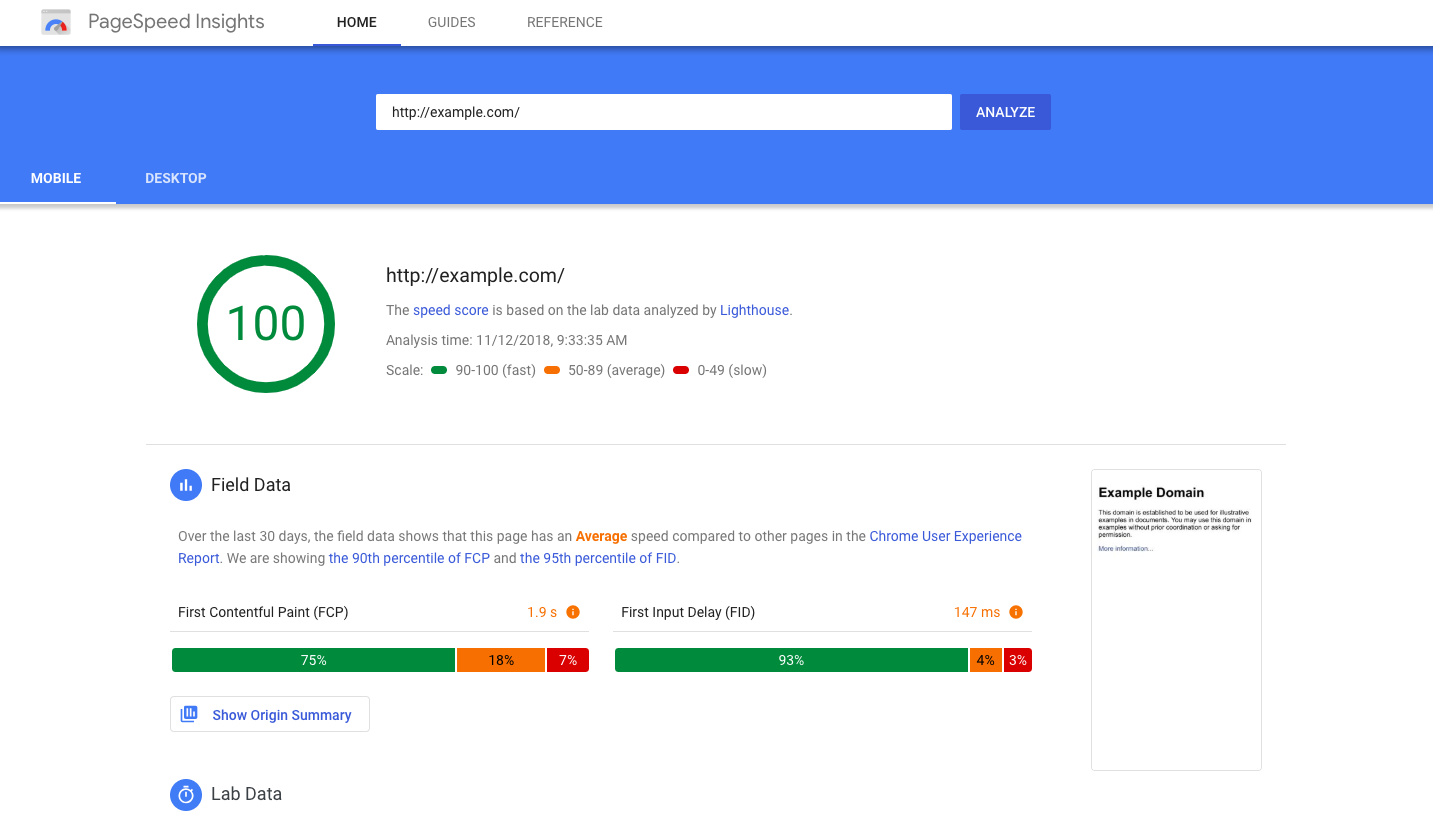
Core Web Vitals changed in March 2024: Interaction to Next Paint (INP) replaced First Input Delay (FID) as the responsiveness metric. The 2026 trio is:
- Largest Contentful Paint (LCP): should be under 2.5 seconds.
- Interaction to Next Paint (INP): should be under 200 milliseconds.
- Cumulative Layout Shift (CLS): should be under 0.1.
How to audit:
- Open the Core Web Vitals report in Google Search Console. It uses real-user (CrUX) data and groups URLs by issue.
- For each failing URL group, run PageSpeed Insights and read the field data plus the Lighthouse lab data.
- Common WordPress wins: enable a caching plugin, defer non-critical JavaScript, lazy-load images, switch to a modern image format (WebP or AVIF), use a CDN, and audit heavy page-builder widgets that block the main thread (a common INP killer).
For a deeper guide, see our WordPress speed optimization guide and our roundup of free plugins to speed up your WordPress site.
8. Make sure your website is mobile-responsive
Google completed its move to mobile-first indexing on October 31, 2023. The mobile version of your page is the one Google uses for indexing and ranking. Google's standalone Mobile-Friendly Test tool was retired in December 2023; use the Lighthouse mobile audit inside PageSpeed Insights or Chrome DevTools instead.
Manual checks:
- Open your top pages on a real phone, not just a desktop simulator. Look for cut-off text, tap targets that are too small, or sticky headers that cover content.
- Confirm font sizes are at least 16px on body copy.
- Confirm forms and CTAs are reachable with one thumb.
- Make sure mobile and desktop expose the same main content, structured data, and internal links. Hiding content on mobile that exists on desktop can hurt rankings.
9. Add and validate schema markup
Structured data (schema.org markup in JSON-LD) helps Google understand your content and unlocks rich results: review stars, FAQ snippets, How-To steps, breadcrumbs, recipe cards, product info, and more. Structured data is not required for AI Overviews or AI Mode (Google has stated there is no special schema for those), but accurate markup still helps Google interpret your page and can support the same snippet eligibility that AI features draw from.
Recommended baseline for a WordPress site:
OrganizationorLocalBusinessschema on the homepage.WebSiteschema with a Sitelinks Search Box.BreadcrumbListon every post and page.ArticleorBlogPostingon blog posts (with author, date published, and date modified).FAQPageonly on pages that actually have a visible FAQ section.ProductandReviewfor e-commerce or review content.
Yoast SEO, Rank Math, and All in One SEO all generate this automatically. Validate the output with the Google Rich Results Test and the Schema.org Validator, and watch the Enhancements reports in Google Search Console for errors.
10. Audit your XML sitemap and robots.txt
A clean sitemap tells Google exactly which URLs you care about; a clean robots.txt makes sure nothing important is accidentally blocked.
- Open
yourdomain.com/sitemap.xml(or/sitemap_index.xml). Confirm it lists only canonical, indexable URLs. Nonoindexpages, no redirected URLs, no thin tag archives you do not want ranking. - Submit the sitemap inside Google Search Console, Sitemaps. Re-submit after any major content change.
- Open
yourdomain.com/robots.txt. Confirm you are not accidentally blocking/wp-content/,/wp-includes/, or any other directory that holds CSS, JS, or image assets Google needs to render your pages.
11. Optimize images
Images are usually the heaviest assets on a WordPress page and the easiest performance win.
- Compress and serve images in WebP or AVIF. Most modern hosts and image plugins (ShortPixel, Imagify, EWWW, Smush) handle the conversion automatically.
- Set explicit
widthandheightattributes to prevent CLS. - Use native
loading="lazy"for below-the-fold images. WordPress adds this by default since 5.5. - Write descriptive, accurate alt text for every meaningful image. Skip alt text for purely decorative images (use
alt=""). - Use descriptive filenames (
wordpress-seo-audit-checklist-2026.webp, notIMG_4823.jpg).
12. Prepare your content for AI Overviews and zero-click search
By 2026, a meaningful share of search results includes Google AI Overviews and AI Mode, Bing Copilot answers, and ChatGPT-style summaries. Google's current guidance is clear: there are no special requirements or special schema for AI Overviews or AI Mode. If a page is indexed in Google, follows standard webmaster guidelines, and is eligible to appear as a snippet, it is already eligible to surface in AI experiences. There is no separate "optimization" framework to learn.
The practical takeaway for a 2026 audit is to double down on foundational SEO and helpful-content fundamentals, because the same signals that earn snippets also feed AI features:
- Cover the topic with clear, scannable answers near the top of each page.
- Use definition-style sentences right under H2 headings ("A WordPress SEO audit is...").
- Add concise FAQ sections to longer guides where they genuinely help readers.
- Keep structured data accurate and validated (it is not required for AI Overviews, but it does help Google understand the page).
- Demonstrate first-hand expertise (E-E-A-T) through credible authors, original data, and citable evidence.
- Make sure the page is crawlable, indexable, and eligible for snippets. For Google AI Overviews and AI Mode, use standard Search controls such as
nosnippet,max-snippet, ornoindexonly when you intentionally want to limit how the page appears in Search, because those same controls also affect normal Search visibility. - Note: Google-Extended is a separate control that governs use of your content for training Gemini and Vertex AI models. It does not control inclusion in Google Search, AI Overviews, or AI Mode, so blocking Google-Extended is not an AI Overviews opt-out.
Note on measurement: as of mid-2026, Google does not provide a separate AI Overviews filter or breakout inside Search Console. AI feature impressions and clicks are included in the standard Performance report under the Web search type. Look for changes in CTR and impression patterns on informational queries to infer AI-feature exposure rather than relying on a dedicated report.
13. Review your backlink profile
Backlinks still matter, but quality has overtaken quantity. A 2026 audit should focus on cleanup as much as growth.
- Pull your backlink list from Google Search Console, Ahrefs Webmaster Tools (free), Bing Webmaster Tools, or a paid suite like Semrush.
- Look for sudden spikes from unrelated foreign-language domains, link farms, or scraper sites. Spammy spikes can correlate with negative SEO attempts.
- Note any high-value editorial links you have earned. Mirror what worked and pitch similar publications.
- Only disavow links if you see a clear unnatural pattern that is hurting you. Google ignores most spam automatically.
- Identify your most-linked-to pages. Make sure they are still your best content. If a top-linked page is outdated, refresh it (do not delete it).
Quick SEO audit summary
If you do nothing else this quarter, run these five checks:
- Confirm "Discourage search engines" is off and core pages are indexed in GSC.
- Read the Core Web Vitals report and fix the worst-performing URL group.
- Update titles, meta descriptions, and H1s on your top 20 traffic pages.
- Crawl the site, fix broken links, and shorten redirect chains.
- Add or validate schema markup on key page types.
Everything else in this guide compounds on top of those five.
Conclusion
A WordPress SEO audit is not a one-time event. Google's algorithms, the WordPress plugin ecosystem, and your own content are all moving targets, so the goal is a repeatable process you can run every quarter in a few hours. Start with the technical foundation (indexing, HTTPS, canonical URLs, Core Web Vitals), then layer on content quality, internal linking, structured data, and the helpful-content fundamentals that also feed AI search experiences. Document what you change and what you measure, and the next audit becomes faster, sharper, and more profitable.
Frequently Asked Questions
How often should I run a WordPress SEO audit?
A full audit once a quarter is the sweet spot for most WordPress sites, plus a 10-minute monthly check inside Google Search Console for new errors. Run an unscheduled audit immediately after a core update, a site migration, or a noticeable traffic drop.
What is the difference between a technical SEO audit and an on-page SEO audit?
A technical audit covers how search engines reach and render your site (indexing, sitemap, robots.txt, HTTPS, canonical URLs, Core Web Vitals, structured data). An on-page audit covers what is on each page (titles, meta descriptions, headings, content quality, internal links, images). A complete SEO audit includes both, plus a quick off-page review of backlinks and brand mentions.
Do I need a paid SEO tool to audit my WordPress site?
No. Google Search Console, PageSpeed Insights, the Rich Results Test, Bing Webmaster Tools, and a free crawler such as Screaming Frog (up to 500 URLs) or Ahrefs Webmaster Tools cover most of this checklist. Paid suites like Semrush or Ahrefs are worth it once you outgrow the free tiers, mostly for deeper backlink and keyword tracking.
How do INP and Core Web Vitals affect WordPress SEO in 2026?
Core Web Vitals are part of Google's page-experience signals. In March 2024 INP replaced FID as the official responsiveness metric, so in 2026 the trio is LCP (load), INP (interactivity), and CLS (visual stability). Good scores do not guarantee a ranking, and bad scores do not automatically tank a page, but page experience can affect how your URLs perform in competitive SERPs. Fixing consistently failing pages is a sensible quality bet, not a magic ranking lever.
How do I optimize a WordPress site for Google's AI Overviews?
There is no separate AI Overviews optimization framework. Google's current guidance is that there are no special requirements or special schema; pages that are indexed, follow standard webmaster guidelines, and are eligible for snippets are already eligible for AI features. Practically, that means cover the topic clearly near the top of each page, use definition-style answers under H2 headings, add FAQ sections where they genuinely help readers, keep schema accurate, and build real E-E-A-T through credible authors, first-hand experience, and citable data. Search Console does not currently break out AI Overviews as a separate filter, so use the standard Performance report (Web search type) and watch CTR and impression patterns on informational queries.


