

How to Change Your WordPress Login URL in 2026 (and Why It Matters)

WordPress still powers a huge share of the web in 2026, and that popularity is exactly why automated bots hammer the same two URLs on millions of sites every day: /wp-login.php and /wp-admin/. If your site uses the default WordPress login URL, those bots already know where to knock.
Changing your WordPress login URL is one of the simplest, lowest-risk security wins you can apply this year. It will not replace a real security stack, but it will cut out the noisiest, most automated attacks before they reach your login form.
This guide walks through why default login URLs are a problem, how to change yours safely with a free plugin, what to do if you get locked out, and the extra hardening steps that should go alongside it.
Why your default WordPress login URL is a security risk in 2026
Every standard WordPress install ships with the same two login entry points:
https://yoursite.com/wp-login.phphttps://yoursite.com/wp-admin/(redirects towp-login.phpwhen no user is signed in)
Paths like /login/ or /admin/ are not WordPress defaults; whether they reach the login form depends on your server config, theme, redirect rules, or other plugins. Bots, scanners, and brute force scripts assume the two real defaults above exist on almost every WordPress site. They cycle through common usernames (admin, administrator, your business name, your domain) and the most leaked passwords until they get in or get rate limited. In 2026, this traffic does not come from one attacker on one machine. It is distributed across thousands of compromised devices, residential proxy networks, and rented cloud servers, which makes simple IP bans less effective than they used to be.
Hiding the login URL does not "encrypt" your site or make it bulletproof. What it does is take you out of the universe of targets that broad automated scans can find. Most of the bot traffic that used to hit your login form will hit a 404 instead, and the noise in your server logs should drop significantly.
Why attackers go after WordPress logins in the first place
The motive is rarely "I want your blog". It is almost always one of:
- Credentials and customer data. WooCommerce stores, membership sites, and lead capture forms all sit behind wp-admin. A working admin login can mean access to customer email addresses, order history, and stored payment metadata.
- Server access. Once an attacker has admin access, uploading a malicious plugin or theme file is trivial. From there they can pivot to your hosting account or other sites on the same server.
- SEO spam and malvertising. Your domain has trust signals an attacker can monetise. Hidden injected links, redirect chains, fake landing pages, and crypto miners all rely on getting into an established site quietly.
- Phishing and email abuse. A compromised site is a clean launchpad for phishing pages and spam email, especially if the domain has a good sending reputation.
- Botnet recruitment. Some attackers care less about your data and more about chaining your server into the next attack against someone else.
Every one of those motives starts with the same first step: get into wp-admin. Make that step harder and you remove yourself from most opportunistic campaigns.
What changing the login URL actually does (and what it doesn't)
It helps a lot:
- It hides the obvious entry point that most broad automated scans target.
- It reduces the server resources spent serving and rejecting opportunistic login attempts.
- It keeps your log files readable, so real anomalies stand out.
- It raises the bar for credential stuffing, because the attacker now has to discover your custom URL before they can even start guessing passwords.
It does not, by itself:
- Stop a targeted attacker who already knows your custom URL.
- Patch vulnerable plugins or themes.
- Replace strong passwords, two factor authentication, or a web application firewall.
- Protect against XML-RPC abuse, REST API enumeration, or compromised user devices.
Treat the login URL change as one layer in a stack, not the whole stack. The plugin alternatives section and the additional hardening section later in this post cover the rest.
How to change your WordPress login URL with WPS Hide Login
The cleanest, most maintained free option in 2026 is still WPS Hide Login by Remy Perona and WPServeur. As of the latest update it sits at version 1.9.18, has 2+ million active installations, is tested up to WordPress 6.9, requires PHP 7.0 or higher, and holds a 4.8 star rating on the official plugin repository. Several login-page disclosure vulnerabilities have been patched in releases since 2021, so make sure you install the current version, not an old bundled copy from a theme.
The plugin does not edit core files. It intercepts login page requests in PHP, so deactivating it returns your site exactly to the state it was in before.
Step 1: Install and activate the plugin
From your WordPress admin dashboard:
- Go to Plugins → Add New.
- Search for WPS Hide Login.
- Click Install Now, then Activate.
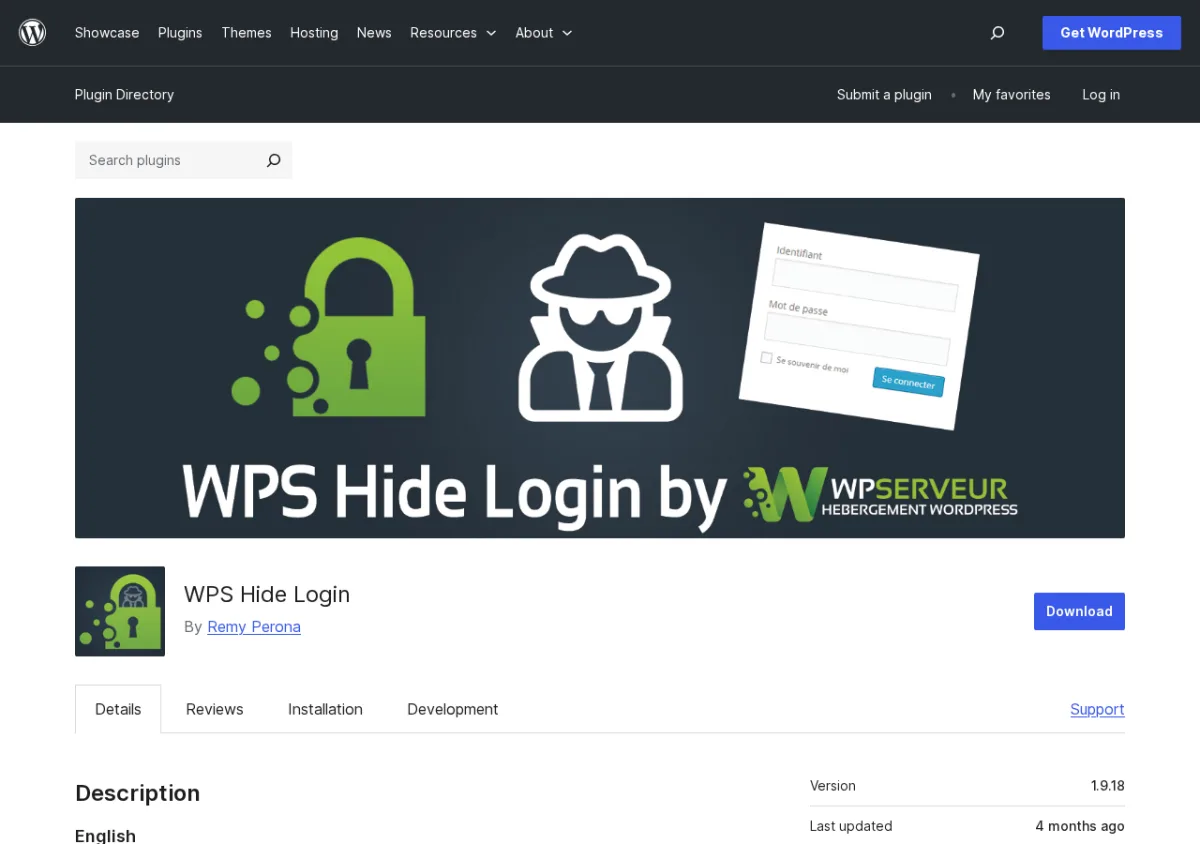
If you prefer to download manually, get the latest ZIP from the official WordPress.org listing rather than from third party sites. Nulled or repackaged versions of security plugins are an obvious place for attackers to hide backdoors. We covered the wider risk in reasons to avoid using nulled WordPress plugins.
Step 2: Set your new login slug
After activation, WordPress will redirect you to the WPS Hide Login settings. You can also reach them later from Settings → WPS Hide Login.
You will see two fields:
- Login URL. This is the new slug that will replace
wp-login.php. Pick something that is not guessable. Avoidadmin,login,dashboard,secret,backend, your domain name, your brand name, and any leaked variant of your username. - Redirection URL. Where someone gets sent when they try to access
wp-login.phporwp-admin/directly. The default404works well. You can also send curious visitors to your homepage if you prefer a friendlier response.
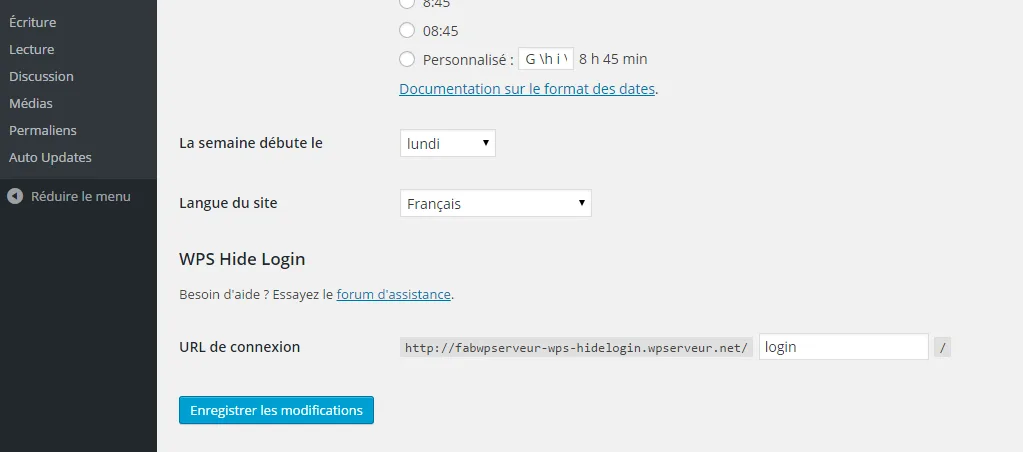
Good slug choices look more like gate-7q2, staff-portal-9x, or a short string only your team will use. Treat it like a password in the sense that it should not be in any wordlist.
Step 3: Save and bookmark the new login URL
Click Save Changes. WordPress will log you out and the only working login URL will now be https://yoursite.com/your-new-slug.
Before you log out:
- Bookmark the new login URL in every browser you use.
- Save it in your team password manager so co-admins, agencies, and freelancers can find it.
- Update any documentation or onboarding notes that still reference
/wp-admin.
If you maintain client sites, store the URL in the same place you store the rest of the client credentials so you do not need to look it up under pressure.
Step 4: Add the new URL to your cache exclusion list
If you use a page caching plugin other than WP Rocket, you need to tell it not to cache your new login slug. Caching the login page can serve an empty or broken response to legitimate users, or worse, leak that the slug exists.
How to handle it in common caches:
- WP Rocket. No action needed. WPS Hide Login is fully compatible.
- W3 Total Cache. Add the slug to Performance → Page Cache → Advanced → Never cache the following pages.
- WP Super Cache. Add the slug to Advanced → Rejected URL Strings.
- LiteSpeed Cache. Add the slug to Cache → Excludes → Do Not Cache URIs.
- Cloudflare or other CDN-level page caching. Add a cache rule that bypasses the cache for the new login URL.
If you handle caching at the server or CDN level, repeat the exclusion there too. Page caching plugins do not see edge caches.
Pair login URL hiding with these additional protections
A custom login URL only buys you so much. Pair it with the following to build a real defence in depth:
- Limit failed login attempts. Even with a hidden URL, you want a hard limit on retries from a single IP. The same author publishes WPS Limit Login, which blocks brute force attempts after a configurable number of failures and handles reverse proxies, WooCommerce login pages, and XML-RPC requests.
- Enable two factor authentication. Plugins like Wordfence Login Security or Two Factor (by the WordPress.org core contributor team) add a second step after the password. Even if your custom slug leaks, the attacker still needs the second factor.
- Use strong admin usernames and passwords. Never keep
adminas a username, and require admins to use a password manager. A 20+ character random password is still one of the most effective defences against credential stuffing. - Run a web application firewall. Wordfence, Solid Security, MalCare, and Sucuri all offer free or paid WAF tiers that block malicious requests before they reach WordPress.
- Disable XML-RPC if you do not use it. XML-RPC is a common attack vector for brute forcing logins and amplifying DDoS attacks. If you do not rely on the Jetpack mobile app, IFTTT, or pingbacks, turn it off.
- Keep WordPress core, themes, and plugins updated. A surprising share of "hacked WordPress" stories trace back to a known vulnerability in an outdated plugin, not a clever login attack. Schedule monthly updates and security checks following our WordPress monthly maintenance checklist.
- Take and verify backups. A working off-site backup is your insurance if anything in this stack fails. Make sure it is automated, off-server, and tested by restoring it at least once a quarter.
If you want a shortlist of free tools that overlap with several of the points above, our roundup of the top free WordPress security plugins compares the most popular options side by side.
Trusted alternatives to WPS Hide Login
WPS Hide Login is the simplest option that does one thing well. If you want login URL hiding bundled with a wider security suite, consider one of the dedicated alternatives below. Pick one. Do not stack multiple all-in-one security plugins, since their firewall rules and login intercepts often fight each other.
Plugins that change the WordPress login URL:
- Solid Security (formerly iThemes Security). A focused security toolkit with login hardening, passwordless logins, 2FA, and a dedicated "Hide Backend" feature that changes the login URL.
- All-In-One Security (AIOS). Maintained by Updraft. Includes a brute force section with a custom login URL, cookie-based login, and a CAPTCHA on the login page.
- WP Hide & Security Enhance. Lets you mask more than just the login URL, including admin-ajax and theme/plugin paths. Useful when you also want to hide that the site runs WordPress at all.
Complementary plugins that harden the login form but do not change the login URL:
- Wordfence Security. Free WAF, malware scanner, and live traffic monitoring. Its bundled Login Security module adds 2FA, XML-RPC protection, and a login CAPTCHA. It does not hide the WordPress login URL on its own, so pair it with one of the URL-hiding plugins above if you want both.
- WPS Limit Login. From the same author as WPS Hide Login. Caps failed login attempts per IP and works behind reverse proxies, on WooCommerce login pages, and over XML-RPC.
Whichever you pick, validate that the plugin is still receiving updates (look at the "Last updated" date on its WordPress.org listing) and is tested against the current WordPress major version.
What to do if you lose access to your new login URL
If you lose access, the cause is usually simple: you forgot the slug, a co-admin forgot it, or a deactivated bookmark sends you to /wp-login.php and you hit the 404. Here are the recovery options, easiest first:
- Check your bookmarks and password manager first. Most "lockouts" are just a missing bookmark.
- Restore from a recent backup. If you have a backup taken right after you set the slug, restoring just the WordPress database options will bring the slug back. UpdraftPlus, BlogVault, and most managed hosts allow partial restores.
- Look up the value in your database. Open your database in phpMyAdmin or your host's database tool, browse the
wp_optionstable, and look for the row whereoption_nameiswhl_page. Theoption_valueis your current login slug. On multisite installs, the option lives inwp_sitemetainstead. - Disable the plugin via FTP or SSH. Connect to your server, go to
/wp-content/plugins/, and rename thewps-hide-loginfolder to something likewps-hide-login-off. WordPress will deactivate the plugin and your old/wp-login.phpURL will work again. Log in, fix the issue, then rename the folder back and reset a new slug.
Whichever path you take, document the new URL the same day so the next lockout never happens.
Common pitfalls to avoid
- Putting the slug in any public place. Do not paste it into a public ticket, a screenshot in a blog post, or a Slack channel that includes external collaborators.
- Choosing a slug that conflicts with a real page or post. If you also have a page at
/login, the plugin will not be able to use that slug. Pick something the public side of your site does not use. - Stacking two plugins that hide the login URL. This is a frequent cause of redirect loops. If you switch from WPS Hide Login to another URL-hiding plugin such as Solid Security's "Hide Backend" or AIOS, deactivate the first plugin completely before configuring the second.
- Forgetting plugins or themes that hardcode
wp-login.php. Most modern code useswp_login_url(), but a few older themes still link towp-login.phpdirectly. Those links will not work after the URL change. Update or replace them. - Skipping the cache exclusion step. Without it, you will see strange behaviour where the login page sometimes works and sometimes returns a cached blank or 404.
When changing the login URL might not be enough
If your site has already been compromised, hiding the login URL after the fact does not help. The attacker may already have a backdoor uploaded as a plugin or theme file, a rogue admin account, or a scheduled task that recreates their access. In that situation, follow a full incident response:
- Take the site offline or put it in maintenance mode.
- Snapshot the current state for evidence.
- Restore from a known good backup that pre-dates the compromise.
- Reset every password, every API key, and every salts entry in
wp-config.php. - Re-audit users, plugins, and themes for anything you did not install.
- Re-enable the site and apply the hardening checklist above.
If a recovered site keeps getting reinfected, a guide on solving WordPress critical errors is a good starting point for triaging issues before you go back online, and a managed security service like Wordfence Care, MalCare, or Sucuri can take over the cleanup.
FAQ
Is changing the WordPress login URL still useful in 2026?
Yes. Most brute force traffic against WordPress sites is still automated and still aimed at the default /wp-login.php and /wp-admin/ URLs, so hiding those URLs is a low-effort change that removes you from most opportunistic, broad-scan attacks. It will not stop a targeted attacker who already knows your custom URL, and it should always sit alongside rate limiting, 2FA, and a WAF.
Does WPS Hide Login slow down my site?
No. The plugin runs a single check on each request to see if the URL matches your login slug or one of the WordPress login paths. It does not add database queries on regular page loads and is fully compatible with WP Rocket. With any other page caching plugin, you only need to add the new slug to the cache exclusion list once.
Is hiding wp-login.php the same as security through obscurity?
In part, yes, and that is fine. Security through obscurity is a problem only when it is your only defence. Combined with limiting login attempts, two factor authentication, a strong password policy, and a firewall, hiding the login URL adds a meaningful layer at almost zero cost.
What happens to the WordPress lost password, registration, and reset flows?
They keep working through the new URL. WPS Hide Login routes ?action=lostpassword, ?action=register, and ?action=resetpass through your custom slug, so password resets and registrations continue without you exposing wp-login.php.
Will this break WooCommerce or membership plugins?
No, as long as those plugins use the WordPress core function wp_login_url() to generate login links, which the major plugins do. WooCommerce, MemberPress, LearnDash, Easy Digital Downloads, and most modern plugins all work correctly. If a plugin or theme has hardcoded wp-login.php in a template, you will need to update or replace that template.
Can I use WPS Hide Login on WordPress multisite?
Yes. The plugin supports multisite with subdomains or subfolders. Activating it for a network allows you to set a network-wide default slug, and individual sites can still override their own login URL.
What if I rename wp-login.php directly instead of using a plugin?
Do not. WordPress will overwrite renamed core files on the next update and you will end up with two competing login files, or no login at all. A plugin that intercepts requests is the safe pattern.
Is there a paid version of WPS Hide Login I should consider?
No, the plugin is free with no premium upgrade. If you need a wider feature set such as 2FA, malware scanning, or a managed firewall, look at one of the alternative suites covered above.
Final thoughts
Changing your WordPress login URL is one of the smallest changes in this guide and one of the most effective per minute spent. It will not stop a determined attacker, but in 2026 it will cut out most of the opportunistic, broad-scan brute force traffic and free up your server logs so you can spot real threats.
Pair it with limited login attempts, two factor authentication, strong credentials, and a maintained security plugin, and you will be ahead of most WordPress sites on the open web. Then add a tested, off-site backup so you can recover gracefully on the day something does slip past.


