

WordPress User Roles Explained: How to Add Authors and Manage Permissions in 2026


If you run a WordPress blog, magazine, booking website, store, or agency site, you probably need more than one person in the dashboard. Writers need to draft articles. Editors need to review and publish content. Support or operations teammates may need access to bookings, customers, or plugin settings.
The mistake is giving everyone Administrator access "just to make things easier." WordPress already includes a role and capability system, so you can give each person only the access they need.
In this guide, we'll explain the default WordPress user roles, how to add a new author, which role to choose for common team workflows, and what to check before enabling public registration or custom roles.
What are WordPress user roles?
WordPress user roles are permission groups. Each role includes a set of capabilities, such as writing posts, uploading files, publishing content, moderating comments, installing plugins, or managing users.
In a standard self-hosted WordPress installation, the main built-in roles are:
- Administrator
- Editor
- Author
- Contributor
- Subscriber
WordPress Multisite also includes Super Admin, a network-level role with access across the whole network.
Plugins can add more roles. For example, ecommerce, membership, LMS, booking, SEO, and social media plugins may add roles such as Customer, Shop Manager, SEO Manager, Booking Manager, or other product-specific roles. Always check the plugin documentation before assigning these roles, because their permissions depend on the plugin.
WordPress user roles at a glance
| Role | Best for | Can publish posts? | Can edit other users' posts? | Can upload media? | Can manage plugins/ |
|---|---|---|---|---|---|
Super Admin |
WordPress Multisite network owners |
Yes |
Yes |
Yes |
Yes, across the network |
Administrator |
Site owners and trusted technical admins |
Yes |
Yes |
Yes |
Yes, on a single site |
Editor |
Content managers and editorial leads |
Yes |
Yes |
Yes |
No |
Author |
Trusted writers who publish their own work |
Yes, own posts |
No |
Yes |
No |
Contributor |
Guest writers and untrusted authors |
No |
No |
No by default |
No |
Subscriber |
Members, readers, commenters, customer profiles |
No |
No |
No |
No |
The safest rule is simple: give users the lowest role that lets them do their job.
How to add a new user or author to your website
For most sites, the easiest way to add a new author is through the WordPress dashboard.
Manually adding new users to your website.
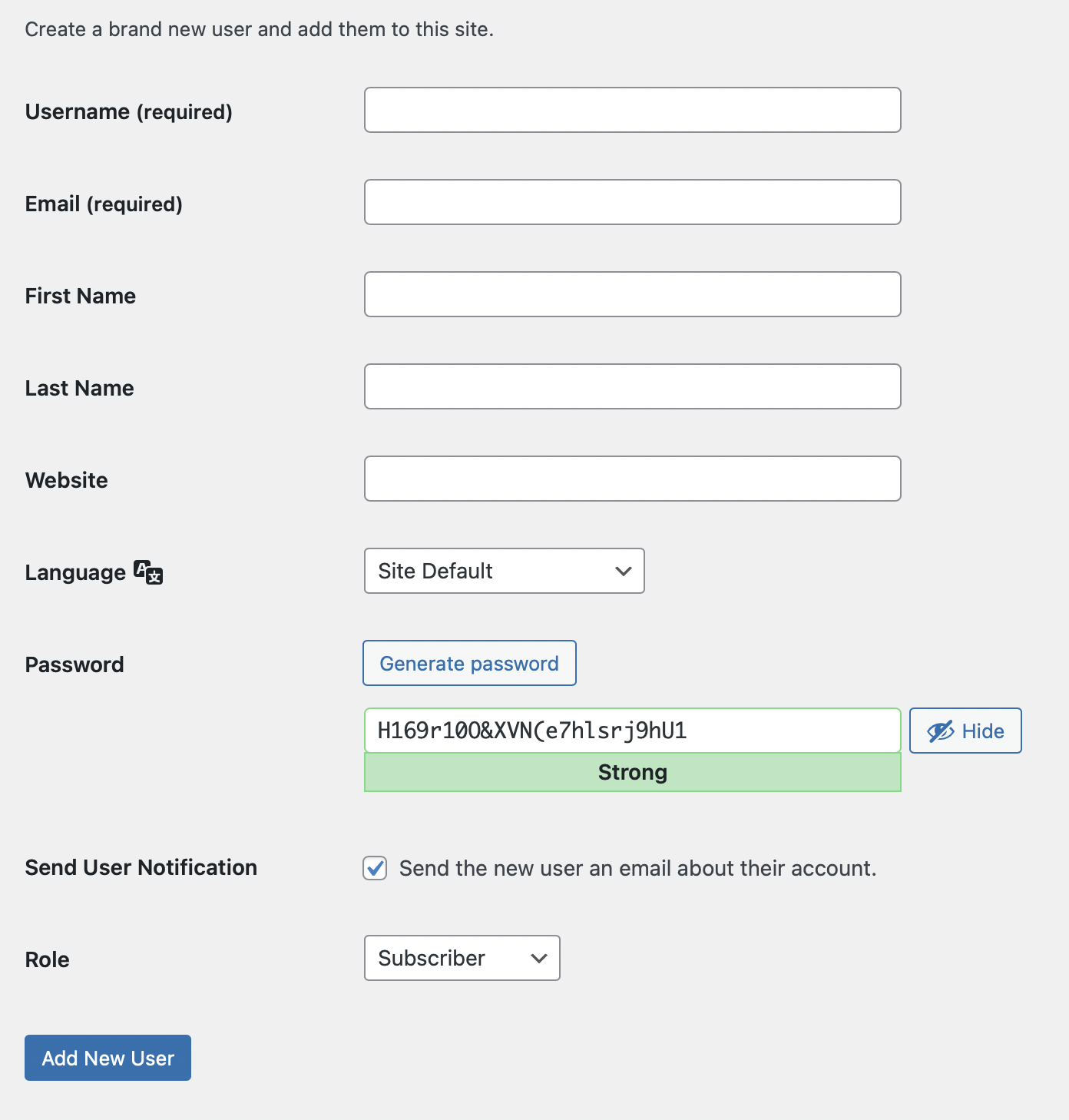
- Log in to your WordPress admin dashboard.
- Go to Users, Add New User.
- Enter the person's Username. Choose carefully, because WordPress usernames are not designed to be changed later.
- Enter the user's Email address. WordPress uses this for account notifications, password resets, and profile communication.
- Add optional details such as first name, last name, and website.
- Let WordPress generate a strong password or send the user a password setup link.
- Keep Send User Notification enabled if you want WordPress to email the new user.
- Choose the correct Role from the dropdown.
- Click Add New User.
For a typical blog writer, choose Author if they are trusted to publish their own posts. Choose Contributor if their drafts should be reviewed before publishing.
Understanding User Roles: how to choose the correct option?
Each default role unlocks a different set of capabilities. The dropdown shown in the Add New User screen is where you assign them.
Administrator
Use for: Site owners, senior developers, and trusted technical managers.
An Administrator has full control over a single WordPress site. Administrators can manage users, install and update plugins and themes, change settings, publish content, delete content, and access sensitive configuration areas.
Give Administrator access only to people who genuinely need full control. If someone only writes or edits content, they should not be an Administrator.
Security tip: Keep at least two trusted admin accounts for business continuity, but avoid creating unnecessary admin accounts. Review Administrator users regularly and remove access when contractors or team members leave.
(Note on Super Admin: this is only relevant on WordPress Multisite. A Super Admin can manage network-wide settings, sites, users, themes, and plugins across every site in the network. If your site is not part of a Multisite network, you do not need to think about Super Admin.)
Editor
Use for: Content managers, editorial leads, and people responsible for publishing site content.
Editors can publish and manage posts and pages, including content created by other users. They can usually moderate comments, manage categories, and upload media. They cannot manage plugins, themes, core settings, or site-level configuration.
Choose Editor for someone who needs to run the content workflow but does not need technical control of the website.
Author
Use for: Trusted writers who should publish their own posts.
Authors can create, edit, publish, and delete their own posts. They can upload media files for their content. They cannot edit or delete other users' posts, manage pages, install plugins, change settings, or manage users.
Choose Author when a writer is trusted to publish without an editor pressing the final button.
Contributor
Use for: Guest writers, freelance writers, junior writers, or any author whose work needs approval.
Contributors can write and edit their own posts, but they cannot publish them. Their drafts must be reviewed and published by an Editor or Administrator. By default, Contributors also cannot upload media files.
Choose Contributor when you want a safe editorial workflow. This is usually the best role for guest authors.
Subscriber
Use for: Members, readers, customers, commenters, and users who only need a profile.
Subscribers can log in and manage their own profile. They do not have permission to create, edit, or publish site content.
Subscriber is usually the safest default role for open registration, memberships, newsletters, comment-only communities, and customer accounts.
Should you let users register themselves?
WordPress can allow public registration, but you should enable it only when there is a clear reason.
To check the setting, go to Settings, General and look for:
- Membership: Anyone can register
- New User Default Role
If you enable public registration, set the default role to Subscriber unless you have a carefully controlled workflow. Never set the default role to Administrator, Editor, Author, or any plugin role with sensitive permissions.
Public registration can attract spam accounts. If you need it, consider adding email verification, CAPTCHA, anti-spam protection, login rate limiting, and regular user cleanup.
How to change a user's role later
You can change permissions later if someone's responsibility changes.
- Go to Users, All Users.
- Hover over the user and click Edit.
- Find the Role dropdown.
- Select the new role.
- Save the profile.
For bulk updates, WordPress also lets you select multiple users on the All Users screen and apply a role change from the bulk actions area.
Before promoting someone to Editor or Administrator, confirm that they understand the responsibility. Before removing or downgrading access, make sure important content, integrations, or plugin connections will not break.
Custom roles and plugin-added roles
Many WordPress sites need more precise permissions than the default roles provide. For example:
- A booking manager may need to manage appointments but not edit plugins.
- A support teammate may need customer records but not content publishing rights.
- An SEO specialist may need metadata access but not theme or user management.
- A social media manager may need to schedule posts through a plugin but not change site settings.
Plugins can add custom roles or capabilities. For FS Code users, this is especially relevant on WordPress sites that use tools such as Booknetic for appointment scheduling or FS Poster for social media automation.
When assigning plugin-added roles, ask:
- What exact screens does this role unlock?
- Can this user view customer or payment data?
- Can this user publish, delete, export, or sync content?
- Can this user connect third-party accounts or API credentials?
- Does the plugin documentation recommend a safer role?
Avoid editing role capabilities directly unless you understand the consequences. A small capability change can accidentally give users access to private data, publishing actions, plugin settings, or destructive actions.
Managing Users in WordPress
1. Follow least privilege
Give each user the minimum permissions needed. If someone only writes drafts, choose Contributor. If someone only manages their profile or customer account, choose Subscriber.
2. Keep Administrator accounts limited
Administrator accounts are high-value targets. Use them only for people who manage the site technically or own the business process.
3. Use strong authentication
Require strong passwords. Where available, enable two-factor authentication through a trusted security plugin or hosting/security provider. Remove unused accounts quickly.
4. Review users regularly
Schedule a monthly or quarterly access review. Remove inactive users, downgrade people who no longer need elevated access, and confirm every Administrator account still has a business reason.
5. Be careful with shared accounts
Avoid shared logins. Create a separate account for each person so you can track ownership, revoke access cleanly, and keep accountability clear.
6. Watch plugin roles after installing new tools
New plugins can add roles or capabilities. After installing ecommerce, membership, booking, LMS, SEO, or automation plugins, review the Users screen and plugin documentation.
7. Secure the site before giving more access
User permissions are only one part of WordPress security. Keep WordPress core, themes, and plugins updated. Avoid unsafe extensions; if you are tempted by pirated plugin copies, read our guide on why you should avoid nulled WordPress plugins.
If a plugin or theme update causes a fatal error, WordPress Recovery Mode can help you regain dashboard access. See our guide to WordPress Recovery Mode and our walkthrough on solving WordPress critical errors.
Common role recommendations
| Scenario | Recommended role |
|---|---|
| Business owner managing the whole site | Administrator |
| Developer maintaining plugins, themes, and settings | Administrator, or temporary Administrator access |
| Editorial manager reviewing everyone's content | Editor |
| In-house writer who can publish their own articles | Author |
| Guest blogger submitting drafts for review | Contributor |
| Reader/ |
Subscriber |
| Multisite network owner | Super Admin |
| Booking operations teammate | Plugin-specific booking role, if available, or a carefully reviewed custom role |
| Social media automation teammate | Plugin-specific role if available; avoid Administrator unless required |
Conclusion
WordPress user roles make team collaboration safer. Instead of giving every writer, editor, contractor, or plugin operator full Administrator access, match each person's role to their real responsibility.
For most content teams, the workflow is straightforward:
- Use Contributor for guest authors and draft-only writers.
- Use Author for trusted writers who can publish their own posts.
- Use Editor for people who manage the content calendar and review other writers' work.
- Use Administrator only for trusted people who manage the site itself.
- Use Subscriber for users who only need a profile.
- Use Super Admin only on WordPress Multisite networks.
A clean role structure protects your content, reduces security risk, and keeps the WordPress dashboard easier for everyone to manage.
FAQ
What are the default WordPress user roles?
The default WordPress roles are Administrator, Editor, Author, Contributor, and Subscriber. WordPress Multisite also includes Super Admin for network-level management.
What is the best role for a new blog author?
Use Author if the writer is trusted to publish their own posts. Use Contributor if an editor or administrator should review the draft before publication.
Can a WordPress Author edit other people's posts?
No. An Author can create, edit, publish, and manage their own posts, but cannot edit posts created by other users.
Can a WordPress Contributor upload images?
By default, Contributors cannot upload media files. An Editor or Administrator must add media or a custom permission workflow must be configured.
What is the safest default role for public registration?
Subscriber is the safest default role for public registration because it only gives users basic profile access.
Should every team member be an Administrator?
No. Administrator access should be limited to trusted people who need full technical control of the site. Writers, editors, and customers should use lower-permission roles.
What is the difference between Administrator and Super Admin?
Administrator controls one WordPress site. Super Admin controls a WordPress Multisite network and can manage network-wide settings, users, themes, plugins, and sites.
Can plugins add new WordPress roles?
Yes. Plugins can add custom roles and capabilities. Ecommerce, booking, membership, SEO, LMS, and automation plugins often add their own roles. Review the plugin documentation before assigning them.


